Disable FortiGate VoIP Inspection for Better SIP Calls
Description
Learn how to Disable FortiGate VoIP Inspection using GUI and CLI to improve SIP call stability, prevent VoIP issues, and optimize firewall performance.
Scope
This guide explains how to Disable FortiGate VoIP Inspection by disabling SIP ALG and VoIP inspection on a FortiGate firewall. It covers SIP-ALG, SIP session-helper, RTP inspection bypass, session clearing, and VDOM considerations.
This article is designed for beginner and intermediate FortiGate administrators to Disable FortiGate VoIP Inspection. However, advanced users can also use it for troubleshooting VoIP and SIP issues.
The main keyword in this guide is Disable FortiGate VoIP Inspection, along with FortiGate SIP ALG disable.
Solution
What Is SIP ALG on FortiGate?
SIP ALG (Application Layer Gateway) helps FortiGate inspect and manage SIP VoIP traffic.
It provides several important functions:
- Modifies SIP packets when NAT is used
- Opens RTP audio ports dynamically
- Inspects and logs VoIP traffic
- Helps SIP calls work through firewalls
Fortinet recommends using SIP ALG in most environments because it improves VoIP compatibility and security, although some users choose to Disable FortiGate VoIP Inspection for troubleshooting purposes.
However, some VoIP providers recommend Disable FortiGate VoIP Inspection during troubleshooting to resolve SIP-related issues.
Important Warning Before Disabling SIP ALG
Disabling VoIP inspection can affect production systems.
Before disabling SIP ALG:
- Perform proper troubleshooting first
- Collect SIP debug logs
- Verify firewall policies
- Confirm NAT settings
- Check RTP port handling
Also, re-enabling SIP ALG may require a FortiGate reboot.
How SIP Traffic Works on FortiGate
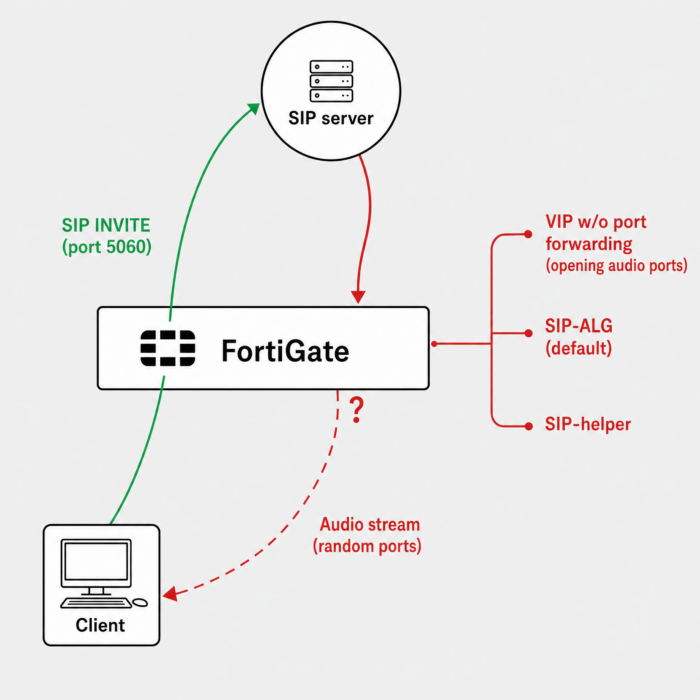
FortiGate can process SIP traffic in two ways:
| Mode | Description |
|---|---|
| SIP-ALG (Proxy-Based) | Default and recommended method |
| SIP Session-Helper | Legacy kernel-based helper |
Since FortiOS 5.2, SIP-ALG handles SIP traffic by default.
In older FortiOS versions, SIP-helper was used when no VoIP profile existed.
Before Disabling SIP ALG
Before making changes, complete these important steps.
Configure the SIP Server Correctly
If NAT is used:
- Configure the SIP server with its public IP address
- Ensure VoIP devices reference the public SIP address
Otherwise, SIP registration or audio may fail.
Open RTP Audio Ports
After disabling SIP ALG:
- FortiGate will no longer open RTP ports automatically
- You must allow RTP ports manually
You can:
- Use firewall policies
- Use VIP objects
- Open required UDP audio ports
Without RTP ports, calls may connect but have no audio.
Important Notes About SIP Inspection
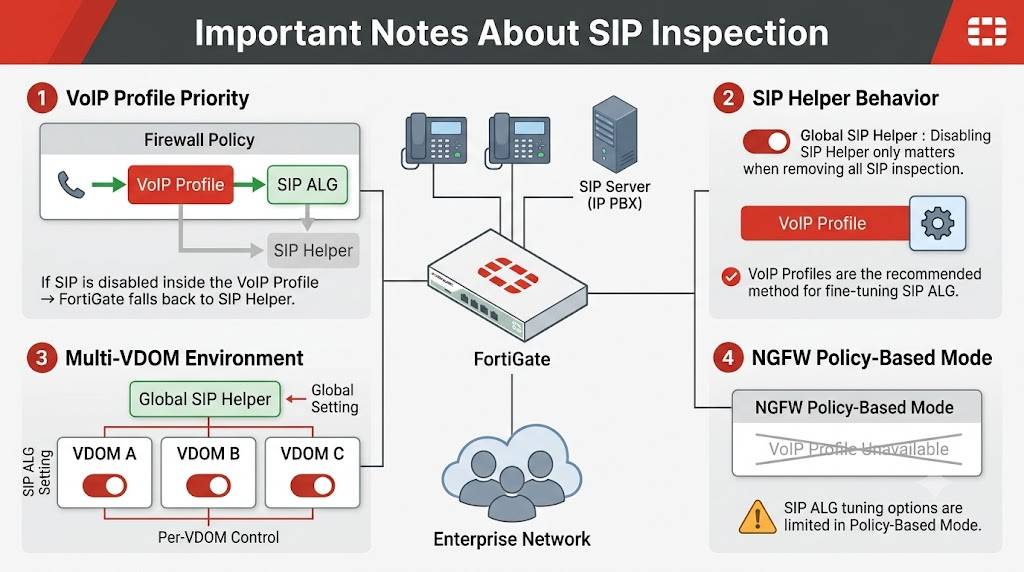
Note 1: VoIP Profile Priority
If a firewall policy uses a VoIP profile:
- SIP-ALG is used automatically
- Even if SIP-helper is disabled
However:
If SIP is disabled inside the VoIP profile, FortiGate uses SIP-helper instead.
Note 2: SIP-Helper Behavior
Disabling SIP-helper only matters when removing all SIP inspection.
Fine-tuning SIP ALG should normally be done using VoIP profiles.
Note 3: Multi-VDOM Environments
SIP-helper is a global setting.
If you remove SIP-helper globally:
- All VDOMs are affected
However, SIP ALG can be enabled or disabled per VDOM.
Note 4: NGFW Policy-Based Mode
VoIP profiles are unavailable in NGFW policy-based mode.
Because of this, SIP ALG tuning options are limited.
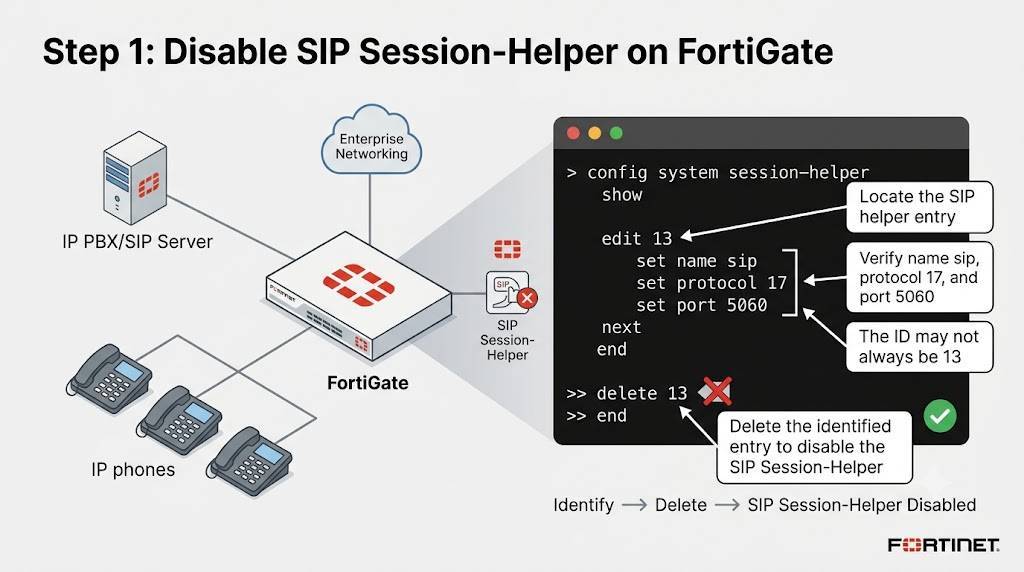
Step 1: Disable SIP Session-Helper
First, identify the SIP helper entry.
Run:
					config system session-helper
show
You should see something similar:
					edit 13
    set name sip
    set protocol 17
    set port 5060
next
end
The ID may not always be 13.
Find the entry using:
- name sip
- protocol 17
- port 5060
Now remove the SIP helper entry:
					delete 13
end
This disables the SIP session-helper.
Step 2: Disable SIP ALG
By default, FortiGate uses proxy-based SIP ALG.
Verify the current setting:
					config system settings
show full
Default configuration:
					config system settings
    set default-voip-alg-mode proxy-based
end
Now switch to kernel-helper-based mode:
					config system settings
    set default-voip-alg-mode kernel-helper-based
end
This disables SIP ALG and uses SIP-helper instead.
Understanding Important SIP Commands
sip-expectation Command
This command does NOT enable or disable SIP-helper.
It only controls dynamic firewall pinholes.
Example:
set sip-expectation enable
Purpose:
- Allows dynamic SIP firewall rules
sip-nat-trace Command
This command also does NOT enable or disable SIP-helper.
It only records original SIP source IP addresses during NAT.
This command works only when:
- kernel-helper-based mode is enabled
- SIP-helper exists
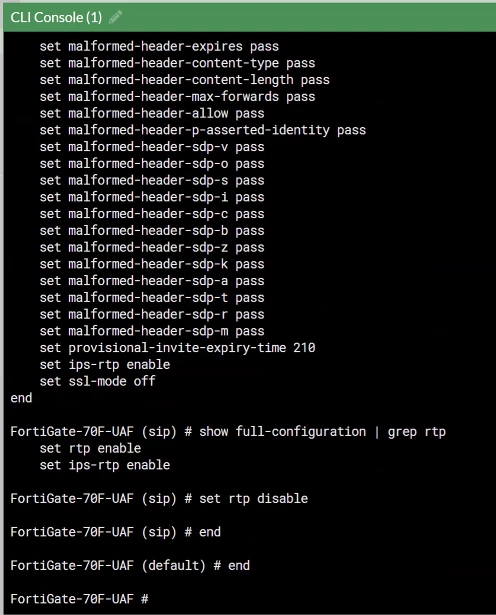
RTP Inspection Bypass on FortiGate
Sometimes SIP signaling works but RTP audio fails.
In this case, disable RTP handling while keeping SIP inspection active.
Run:
					config voip profile
    edit default
        config sip
            set rtp disable
        end
end
This allows RTP media traffic to pass without port modification.
It helps prevent:
- One-way audio
- Call drops
- RTP routing issues
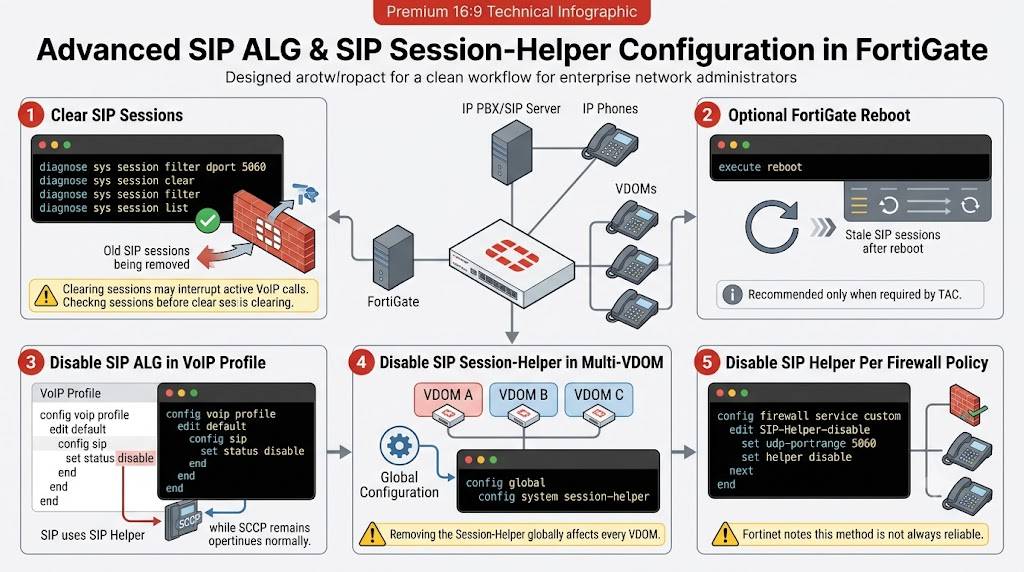
Step 3: Clear SIP Sessions
After changing SIP settings:
- Old sessions may remain active
- Changes may not apply immediately
First filter SIP sessions:
diagnose sys session filter dport 5060
Now clear the sessions:
diagnose sys session clear
Important:
This may interrupt active VoIP calls.
Always verify sessions before clearing them.
Check sessions using:
					diagnose sys session filter
diagnose sys session list
Reboot the FortiGate (Optional)
Sometimes TAC recommends a reboot.
Reboot using CLI:
execute reboot
A reboot helps remove stale SIP sessions.
Disable SIP ALG from VoIP Profile
You can disable SIP inspection directly inside the VoIP profile.
Example:
					config voip profile
    edit default
        config sip
            set status disable
        end
    end
end
In this setup:
- SCCP can still use SIP ALG
- SIP traffic uses SIP-helper instead
This method is useful in mixed VoIP environments.
Disable SIP Session-Helper with VDOMs Enabled
When VDOMs are enabled:
- SIP-helper settings are global
Enter global configuration mode:
					config global
config system session-helper
Removing SIP-helper globally affects every VDOM.
Disable SIP Helper Per Firewall Policy
Sometimes only one VDOM needs SIP-helper disabled.
Create a custom service:
					config firewall service custom
    edit SIP-Helper-disable
        set udp-portrange 5060
        set helper disable
    next
end
Apply this custom service to the firewall policy handling SIP traffic.
This prevents SIP-helper processing for that policy.
However, Fortinet notes this method is not always reliable.
Clear Port 5060 Sessions
To remove all SIP sessions safely:
Clear destination port sessions:
					diagnose sys session filter clear
diagnose sys session filter dport 5060
diagnose sys session clear
Clear source port sessions:
					diagnose sys session filter clear
diagnose sys session filter sport 5060
diagnose sys session clear
Important:
These commands disconnect active calls.
Use them carefully in production environments.
Verification and Troubleshooting
After disabling SIP ALG:
- Test call registration
- Verify RTP audio
- Check NAT behavior
- Monitor SIP packets
Useful troubleshooting commands include:
diagnose sys session list
diagnose debug application sip -1
diagnose sniffer packet any "port 5060" 4
Best Practices and Tips
- Do not disable SIP ALG immediately
- Always collect debug logs first
- Test changes during maintenance windows
- Backup the configuration before changes
- Verify RTP ports after disabling inspection
- Use VoIP profiles whenever possible
- Reboot if stale sessions remain
FAQ
Should I disable SIP ALG on FortiGate?
Only disable SIP ALG for troubleshooting or vendor compatibility testing.
Does disabling SIP ALG affect audio?
Yes. Audio may fail if RTP ports are not opened manually.
What is the difference between SIP ALG and SIP-helper?
SIP ALG is proxy-based and advanced. SIP-helper is a basic legacy kernel helper.
Can I disable SIP ALG per VDOM?
Yes. SIP ALG can be controlled per VDOM, but SIP-helper is global.
Why do calls connect but have no audio?
Usually RTP ports are blocked or RTP inspection causes issues.
Do I need to reboot after disabling SIP ALG?
Sometimes yes. Rebooting clears stale SIP sessions.