
How to perform scheduled upgrade for FortiGates using FortiManager
Description
This article explains how to schedule firmware upgrades for FortiGate devices using FortiManager.
Scope
FortiManager
Solution
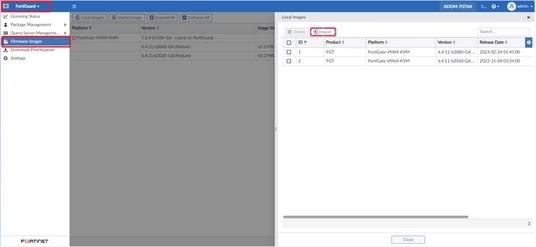
1. If FortiManager is running in a closed network and cannot download images from FortiGuard, the firmware can be manually downloaded from the Fortinet Support Portal and uploaded into FortiManager by navigating to FortiGuard → Local Images → Import and selecting the firmware file.
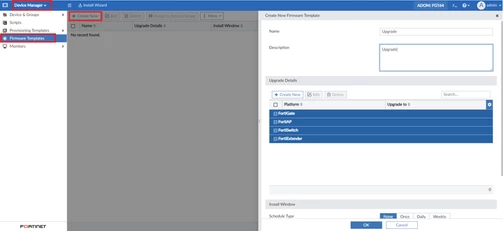
2.Create a new firmware template in FortiManager by going to Device Manager → Firmware Templates and selecting Create New.
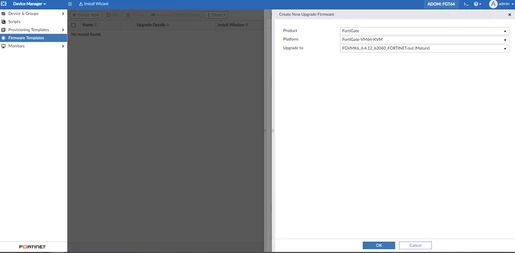
3. Under Upgrade Details in the firmware template within FortiManager, select Create New, then choose the required product, platform, and target firmware version for the upgrade.
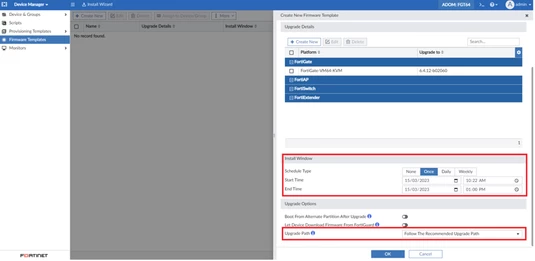
4. Under Install Window in FortiManager, choose the schedule type and set the start and end time for the upgrade.The start time defines when the upgrade begins, while the end time specifies when it should stop.It is also recommended to enable “Follow the Recommended Upgrade Path” under Upgrade Options.
Note: If the upgrade is not completed within the defined end time, the process will stop.
5. Assign the firmware template to the device to be upgraded.
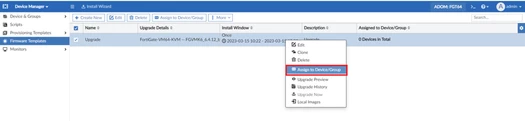
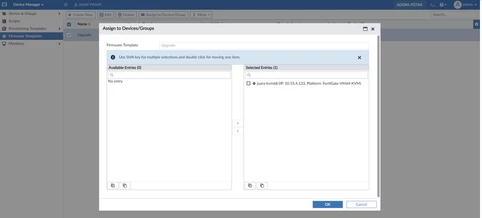
6. When the firmware template runs at the scheduled time, a notification is displayed in FortiManager, showing the upgrade progress of the managed devices.
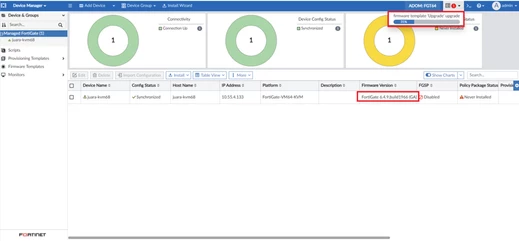
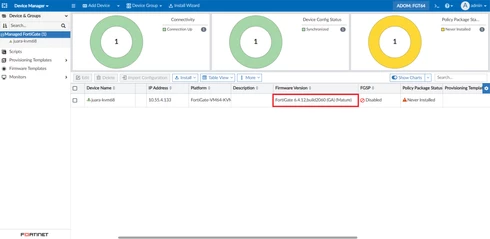
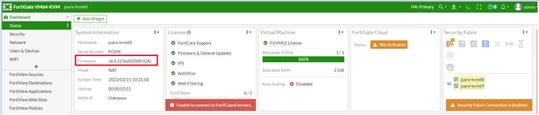
7. After the upgrade has been completed, the notification disappears, and it is possible to verify the firmware version both on FortiManager and FortiGate.
Troubleshooting:
On FortiManager:
execute tac report
diagnose fwmanager fwm-log
On the FortiGate:
execute tac report
During the upgrade process, on the FortiManager side:
diagnose debug application fgfmsd 255