FortiGate Upgrade Path Planning Made Easy in FortiManager
Description
Learn how to check FortiGate Upgrade Path in FortiManager using GUI, CLI, and templates with step-by-step instructions and screenshots for safe upgrades.
Scope
This guide explains how to check the FortiGate upgrade path in FortiManager before performing a firmware upgrade.
It is useful for both beginners and experienced users to:
- Avoid upgrade issues
- Follow the correct firmware sequence
- Ensure a safe upgrade process
Solution
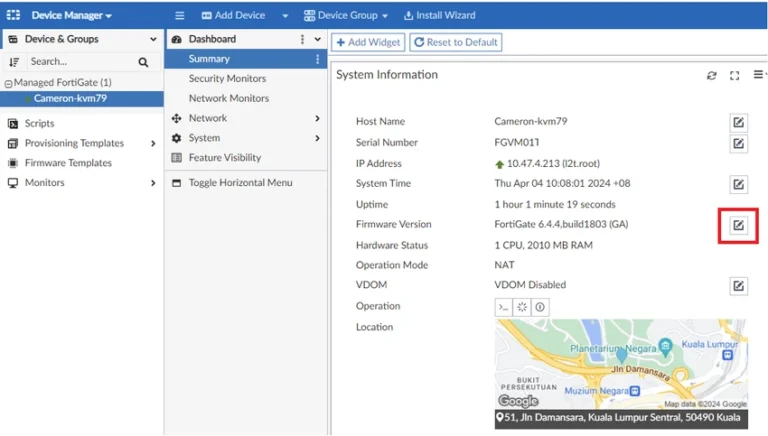
Option 1: Check Upgrade Path via GUI (Device Manager)
This is the easiest method using the FortiManager interface.
Steps:
- Go to:
Device Manager - Select your FortiGate device
- Click the pencil icon next to the firmware version
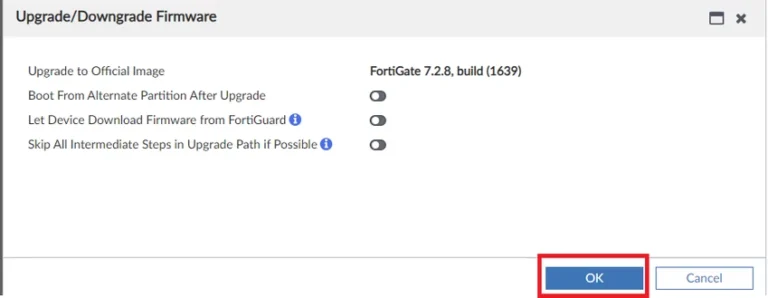
- Choose the target firmware version
- Click Upgrade
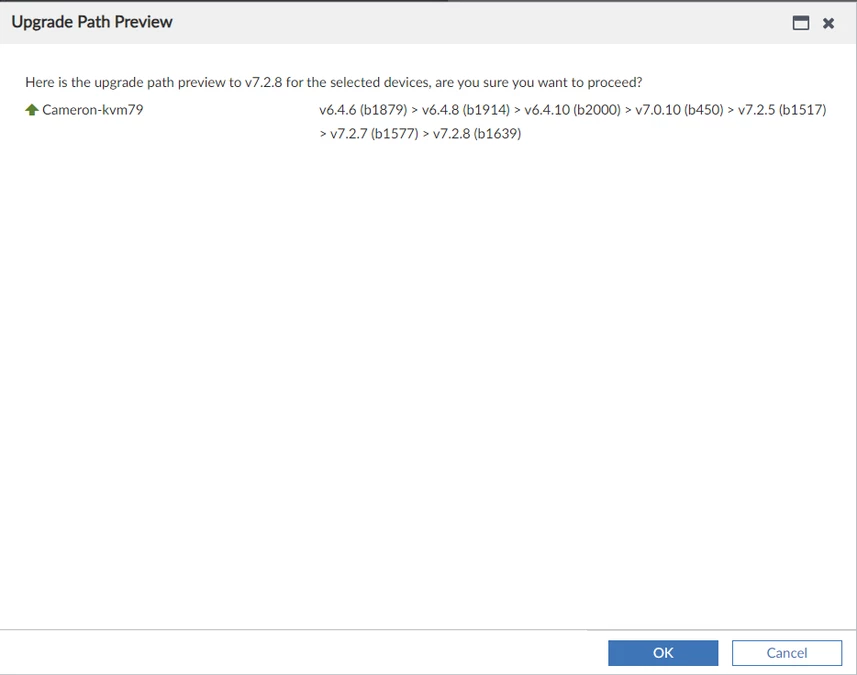
- View the Upgrade Path Preview
Option 2: Check Upgrade Path via CLI
You can also check the upgrade path using FortiManager CLI.
Command:
diag fwmanager test-upgrade-path <platform> <from-version> <to-version>
Example:
diag fwmanager test-upgrade-path FortiGate-VM64-KVM 6.4.4 7.2.8
Output Example:
					platform FortiGate-VM64-KVM, upgrade path from 6.4.4 to 7.2.8:

[6.4.6]->[6.4.8]->[6.4.10]->[7.0.10]->[7.2.5]->[7.2.7]->[7.2.8]
⇒ This shows the exact upgrade sequence required
Option 3: Check Using Firmware Templates
This method is useful when managing multiple devices.
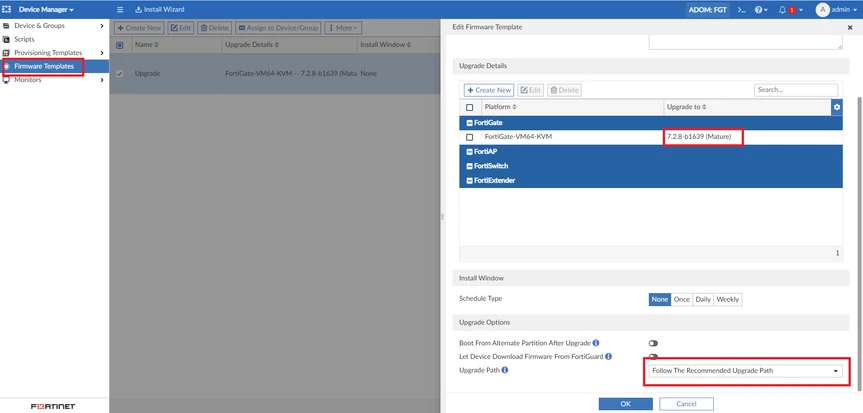
Step 1: Create Firmware Template
Go to:
Device Manager → Firmware Templates → Create New
Select:
- Device platform
- Target firmware version
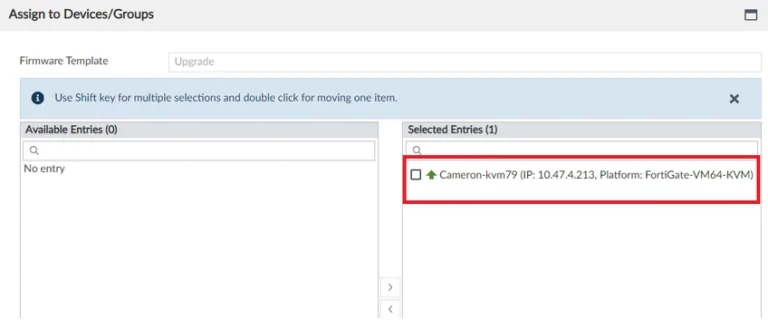
Step 2: Assign Device
- Right-click the template
- Select Assign to Device/Group
- Choose the FortiGate
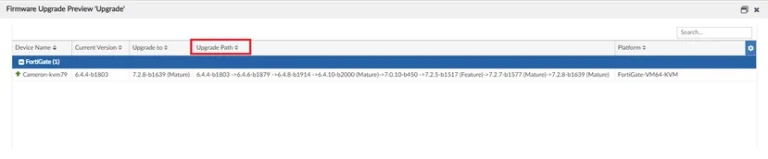
Step 3: Check Upgrade Preview
- Right-click the template
- Select Upgrade Preview
⇒ This displays the upgrade path
Why Checking Upgrade Path is Important
- Prevents firmware upgrade failures
- Ensures compatibility between versions
- Avoids skipping required intermediate versions
- Keeps devices stable during upgrade
Notes / Best Practices
- Always check upgrade path before upgrading
- Do not skip firmware versions unless supported
- Use GUI preview for quick checks
- Use CLI for detailed validation
- Templates are best for bulk upgrades
FAQ
What is an upgrade path in FortiGate?
It is the correct sequence of firmware versions required for safe upgrade.
Can I skip versions during upgrade?
No, unless officially supported. Always follow the upgrade path.
Which method is easiest?
GUI method using Device Manager is the simplest.
When should I use CLI?
Use CLI for advanced checks or automation.
Is template method useful?
Yes, especially for upgrading multiple devices.