Simple FortiGate Admin Password Reset for FortiOS 7.2.4 +
Description
Recover access with FortiGate Admin Password Reset methods for FortiOS 7.2.4+, including console login, config restore, and troubleshooting.
Scope
This article explains how to perform a FortiGate Admin Password Reset to recover or reset a lost administrator password on FortiGate devices.
It focuses on:
FortiGate Admin Password Reset on FortiOS 7.2.4 and later (modern method
- Older versions using the maintainer account
- Special scenarios like VMs, HA clusters, and cloud environments
This guide is useful when:
No admin credentials are available for FortiGate Admin Password Reset.
- Full access to the firewall is required
- Emergency recovery is needed
Solution
Important Change (Critical)
- The maintainer account has been removed
- Old password recovery method no longer works
- You must use configuration restore method
Method 1: Configuration Restore (Main Method)
Prerequisites
- Recent configuration backup (.conf file)
- Console access to FortiGate
- Text editor (Notepad++ recommended)
- Maintenance window (device reboot required)
Step-by-Step Guide
Step 1: Edit Configuration File
- Open backup file in Notepad++
- Enable YAML mode:
Language → YAML
Find:
config system admin
- Collapse
config gui-dashboard(for easier navigation) Locate this line:
- Collapse
set password ENC xxxxxxxxx
Delete it
Save file as:
new-config.conf
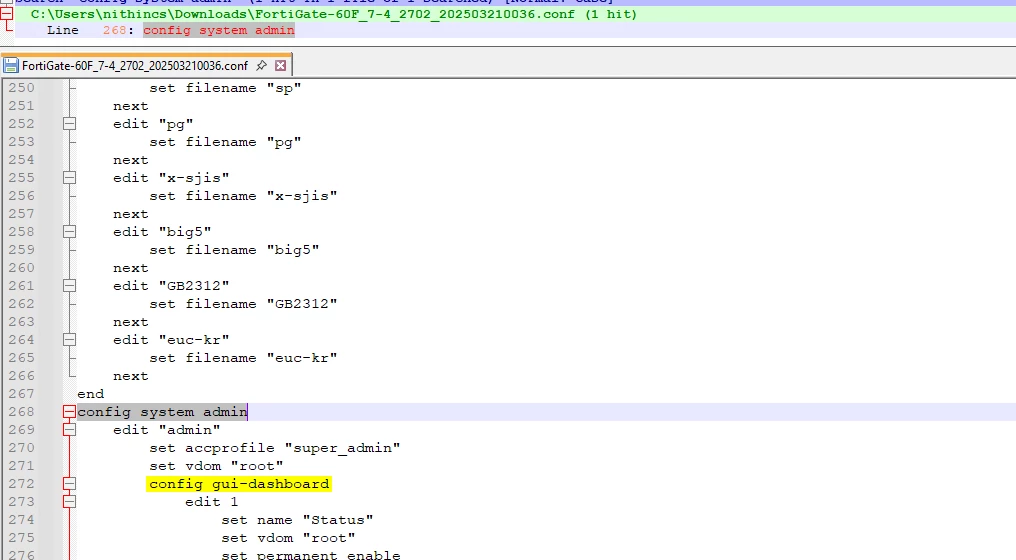

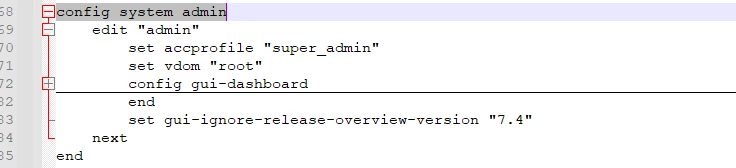
⚠️ Important Technical Notes
super_adminprofile may NOT appear in:
config system accprofile
- It is device-specific
⇒ If the admin user is missing:
- You must manually add it:
					config system admin
edit "admin"
set accprofile "super_admin"
set vdom "root"
next
end
Step 2: Reset the Device
Choose one:
- Format device and reinstall firmware (same version)
- OR factory reset using hardware button (if supported)
⇒ Important:
- Install same firmware version as backup
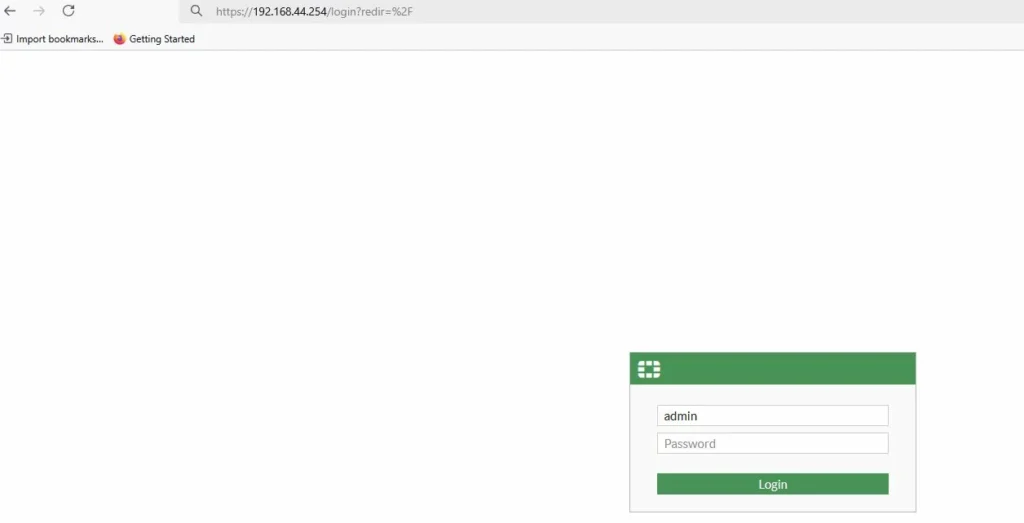
Step 3: Default Login
Access device:
https://192.168.1.99
Login:
Username: admin
Password: (blank)
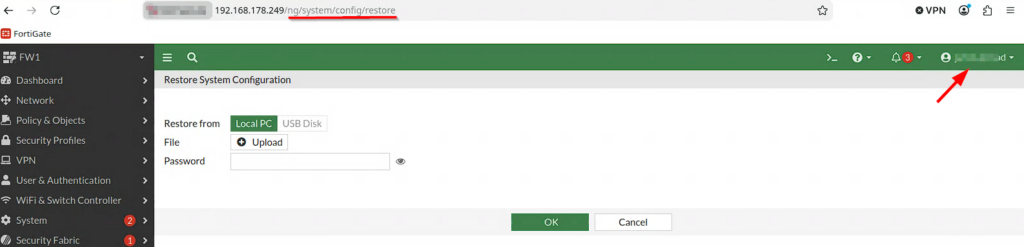
Step 4: Upload Modified Config
- Upload edited config file
- Device will reboot automatically
Step 5: Login & Set New Password
- Login again with default credentials
- Set a new admin password
Method 2: Using Another Super Admin (If Available)
If another admin exists:
- Backup config
Remove password line from admin account:
set password ENC XXXXX- Restore config
- System will prompt for new password after reboot
Method 3: Maintainer Account (Older Versions Only)
Only works on FortiOS before 7.2.4
Steps
- Connect via console cable
- Open terminal (PuTTY or similar)
Console Settings
| Setting | Value |
|---|---|
| Baud Rate | 9600 |
| Data Bits | 8 |
| Parity | None |
| Stop Bits | 1 |
| Flow Control | None |
Login Process
- Reboot device
- At login prompt enter:
- Username:
maintainer Password:
bcpb + SERIAL_NUMBER(Use uppercase letters)
- Username:
Reset Password
Without VDOMs:
					config system admin
edit admin
set password NEW_PASSWORD
end
With VDOMs:
					config global
config system admin
edit admin
set password NEW_PASSWORD
end
Notes
- Login window may be 14–60 seconds
- Try multiple times if needed
- Only works via console (not GUI)
Special Scenarios
Virtual Machines (VMs)
- Maintainer method ❌ not supported
- Use:
- Snapshot restore
- Re-deploy VM
- Restore config without password
- Cloud solutions:
- Azure / AWS password recovery options
HA Cluster
- Turn off secondary device
- Disconnect cables
- Reset password on primary
- Reconnect, config will sync
FortiGate Cloud
- If managed via cloud subscription:
- Password can be reset remotely
Factory Reset Option
execute factoryreset
Use when:
- Admin account deleted
- Full reset required
Advanced Notes
- Do not reconnect power immediately after unplugging; it may cause memory issues
- Some devices use USB console or FortiExplorer instead of serial cable
- Maintainer login window may be very short on some models
- Config backup may not show super_admin if exported by a lower-privilege user
- Maintainer feature can be disabled:
Disable:
					config system global
set admin-maintainer disable
end
Enable:
					config system global
set admin-maintainer enable
end
Warning
- Physical access to the device is required in most cases
- If recovery options are disabled → no access is possible
- Always keep:
- Backup config
- Admin credentials secure
Engineering Note
If the maintainer feature is removed and no backup exists:
- Only solution is:
- Firmware reinstall (TFTP)
- Full device reset
FAQ
Can I reset password without reboot?
No, reboot is required in most methods.
Does maintainer work on new FortiOS?
No, it is removed in FortiOS 7.2.4+
What if I don’t have backup?
You must reset the device and reconfigure manually.
Can I reset password remotely?
Only if using FortiGate Cloud or similar management tools.
Is this a security risk?
No. Maintainer access can be disabled and requires physical access.