
FortiGate Auto Patch: Fortify, Simplify, Sleep Better
Description
Discover how FortiGate auto patch upgrades differ between Cloud and local settings, including priority rules, scheduling, and behavior for unlicensed devices.
Scope
FortiGate firewalls can manage automatic firmware patch upgrades using both local settings and FortiGate Cloud. However, many administrators become confused about which setting takes priority.
This guide explains how FortiGate automatic patch upgrades work between FortiGate Cloud Premium and local FortiGate settings. It also covers precedence rules, scheduling behavior, the 90-day buffer period, and the new auto-upgrade behavior for unlicensed devices.
This article is designed for beginner and intermediate FortiGate administrators, but advanced users will also find useful technical details.
Supported Scope
This behavior applies to:
- FortiGate devices
- FortiGate Cloud Premium
- FortiGate Cloud Standard
- Local FortiGate firmware upgrade settings
- FortiCloud v24.2.0
- FortiOS v7.2 and higher
Solution
Understanding FortiGate Automatic Patch Upgrades
FortiGate allows administrators to schedule automatic firmware patch upgrades from two separate locations:
- FortiGate Cloud
- Local FortiGate settings
These two systems work independently.
Because of this, enabling or disabling one setting does not automatically change the other.
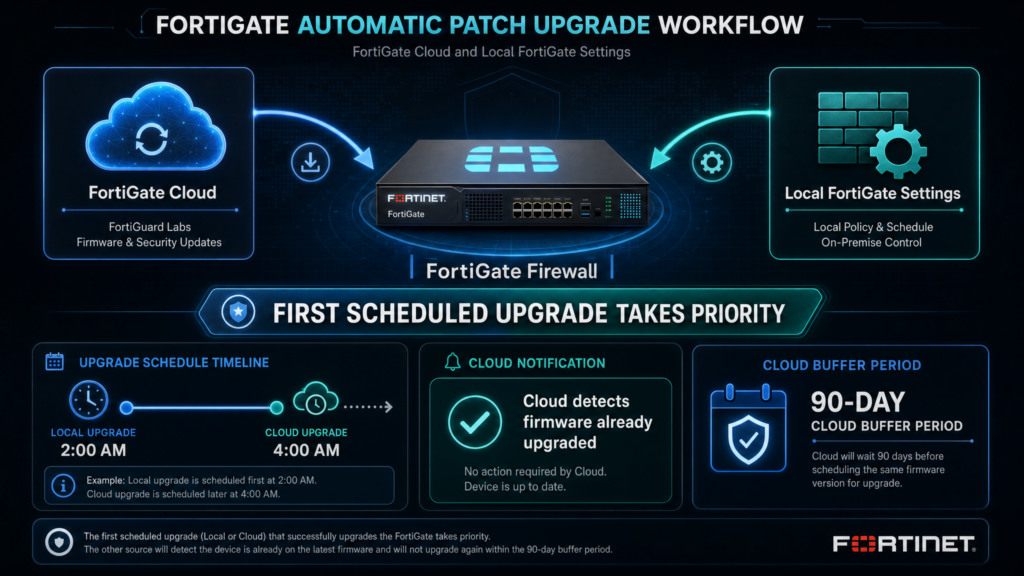
How FortiGate Cloud and Local Settings Work
Parallel Operation
The automatic patch feature in FortiGate Cloud operates in parallel with the local FortiGate auto-patch setting.
This means:
- Both settings can remain enabled at the same time
- Both settings can schedule upgrades independently
- One setting does not overwrite the other
For example:
- You may schedule updates locally on the FortiGate
- At the same time, FortiGate Cloud can also schedule upgrades
Additionally, administrators can enable or disable automatic patch upgrades directly from FortiGate Cloud if the device uses a valid FortiGate Cloud subscription.
Important:
Changing the cloud setting does NOT modify the local FortiGate setting.
Likewise:
Changing the local FortiGate setting does NOT affect the cloud configuration.
Which Upgrade Takes Precedence?
Upgrade Precedence Rules
If both cloud and local settings schedule an upgrade, the first scheduled task takes priority.
In simple terms:
- The earliest scheduled upgrade runs first
- The second scheduled task becomes unnecessary
For example:
| Upgrade Source | Scheduled Time |
|---|---|
| Local FortiGate | 2:00 AM |
| FortiGate Cloud | 4:00 AM |
In this case:
- The local FortiGate upgrade installs first
- FortiGate Cloud detects the device is already updated
- The cloud does not push another firmware upgrade
This behavior prevents duplicate upgrades.
FortiGate Cloud 90-Day Buffer Period
Important Buffer Delay
FortiGate Cloud automatic patching currently uses a 90-day buffer period.
This recommendation comes from Fortinet’s legal guidance.
Because of this:
- Cloud auto-patch changes do not apply immediately
- Firmware upgrades may wait during the buffer window
As a result, administrators should not expect instant cloud-triggered upgrades after changing settings.
New Auto-Upgrade Behavior for Unlicensed FortiGates
Introduced in New FortiOS Versions
Starting with these versions:
- FortiOS v7.4.8
- FortiOS v7.6.4
- FortiOS v8.0.0
Fortinet introduced a new firmware auto-upgrade behavior.
This affects:
- Unlicensed FortiGate devices
- Devices with expired support contracts
How the New Auto-Upgrade Works
If FortiGate support expires or becomes invalid:
- FortiGate automatically schedules a firmware upgrade
- The device upgrades to the latest patch within the same minor release
Example:
- 7.4.5 → 7.4.8
- 7.6.2 → 7.6.4
This scheduled upgrade becomes visible in CLI configuration.
CLI Configuration for Federated Upgrade
Use the following CLI section:
config system federated-upgrade
This area shows the scheduled firmware upgrade configuration.
Can the Scheduled Upgrade Be Cancelled?
No.
The scheduled upgrade cannot be permanently cancelled.
However, administrators can postpone the installation.
Use:
execute auto-upgrade delay-installation
This delays the installation for up to seven days.
Important Delay Rules
There is no limit on how many times you can delay the installation.
However, there is an important restriction.
Once the firmware image is:
- Downloaded
- Checked
- Confirmed
The installation must happen within 1 to 14 days.
Because of this:
- You can reschedule multiple times
- But the upgrade cannot move beyond the 14-day limit
This behavior applies regardless of how often the schedule changes.
Key Differences: Cloud vs Local Auto Patch
| Feature | FortiGate Cloud | Local FortiGate |
|---|---|---|
| Works independently | Yes | Yes |
| Can schedule upgrades | Yes | Yes |
| Changes affect the other setting | No | No |
| First scheduled task wins | Yes | Yes |
| 90-day buffer applies | Yes | No |
| Requires subscription | Yes | No |
Best Practices
Recommended Tips
- Always monitor firmware schedules carefully
- Avoid overlapping cloud and local schedules
- Verify upgrade windows before enabling automation
- Keep FortiGate support contracts active
- Test firmware in lab environments first
- Review release notes before upgrades
- Use maintenance windows for production devices
Common Mistakes to Avoid
Avoid These Problems
- Assuming cloud settings override local settings
- Forgetting the 90-day cloud buffer period
- Ignoring upgrade schedules on expired-support devices
- Scheduling upgrades during business hours
- Running unsupported FortiOS versions
Verification Commands
Check Federated Upgrade Settings
config system federated-upgrade
Delay Auto Installation
execute auto-upgrade delay-installation
FAQ
Does FortiGate Cloud override local auto-patch settings?
No. Both systems work independently.
Which firmware upgrade runs first?
The first scheduled upgrade takes precedence.
Does FortiGate Cloud apply updates immediately?
No. Cloud auto-patching currently uses a 90-day buffer period.
Can I cancel forced upgrades on expired-support FortiGates?
No. You can only delay the installation.
How long can I delay the installation?
You can delay it repeatedly, but not beyond the 14-day installation window.
Which FortiOS versions introduced this new behavior?
The feature starts in:
- FortiOS 7.4.8
- FortiOS 7.6.4
- FortiOS 8.0.0