Stop FortiGate Upgrade Failures Now with FortiManager
Description
Upgrade FortiGate using FortiManager with GUI, templates, HA support, and troubleshooting to fix FortiGate Upgrade Failures quickly, safely, and efficiently
Scope
This guide explains, step by step, how to upgrade FortiGate using FortiManager. It also helps prevent FortiGate upgrade failures during the process. The guide is useful for both beginners and experienced network administrators.
You will learn:
-
GUI upgrade method to prevent FortiGate Upgrade Failures.
-
Firmware Template upgrade to avoid FortiGate Upgrade Failures.
-
HA cluster behavior during FortiGate Upgrade Failures.
-
Troubleshooting and debug commands for FortiGate Upgrade Failures.
Solution
Prerequisite: Check Firmware Upgrade License
Before upgrading, ensure the FortiGate has a valid firmware license so that the upgrade process runs smoothly and avoids any upgrade failures.
Run this on FortiManager CLI:
diagnose fmupdate fds-dump subs
⇒ This confirms the FMWR (firmware) license status
Method 1: Upgrade via GUI (Device Manager)
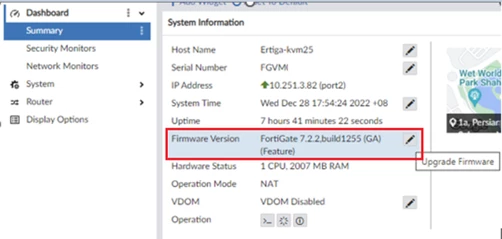
Step 1: Open Device Manager
Go to:
Device Manager → Managed FortiGate
Double-click the target device.
Under Firmware Version, click:
⇒ Upgrade Firmware
Step 2: Select Firmware Version
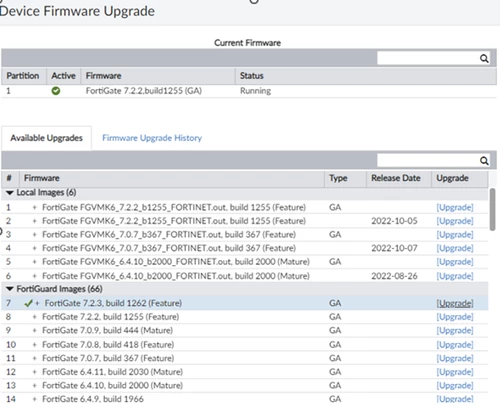
Choose the required firmware version/image and click:
⇒ Upgrade
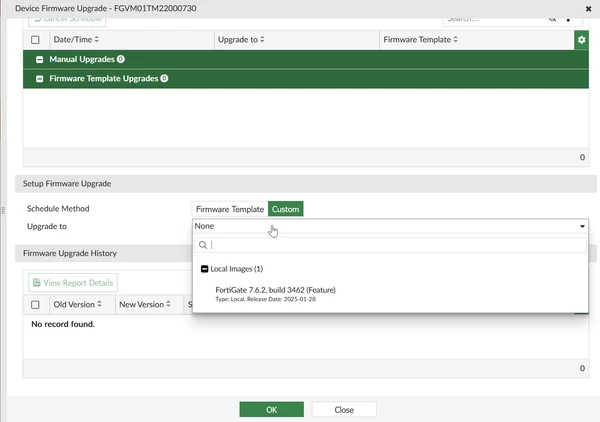
FortiOS 7.4+ Layout Change
- UI layout is slightly different in newer versions
- No direct “Backup Config” option
⇒ Instead, use:
Revision History → Snapshot (for backup)
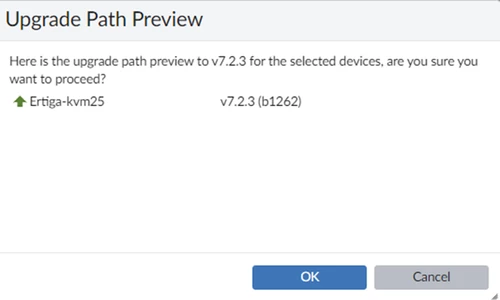
Step 3: Firmware Download Prompt
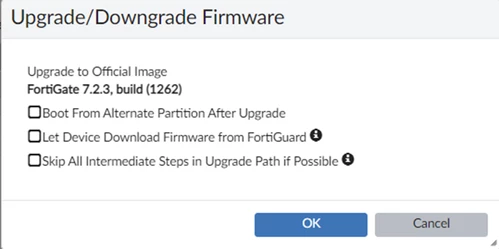
Before the upgrade, a prompt appears:
⇒ Select:
“Let Device Download Firmware from FortiGuard”
✔ Use ONLY if firmware is NOT imported in FortiManager
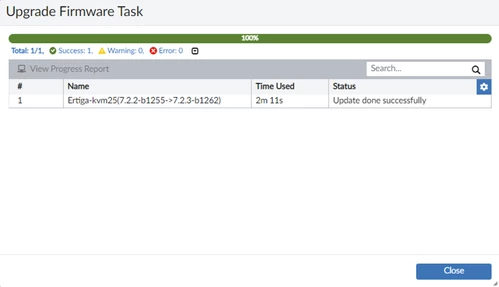
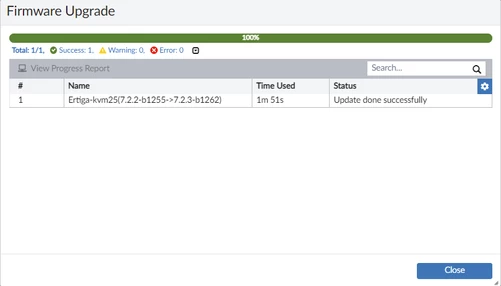
Step 4: Monitor Upgrade Progress
Track upgrade status until completion.
Method 2: Upgrade Using Firmware Templates (Advanced)
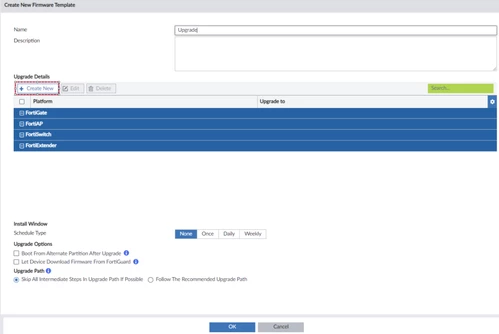
Step 1: Create Firmware Template
Go to:
Device Manager → Firmware Templates → Create New
Select:
- Platform
- Firmware version
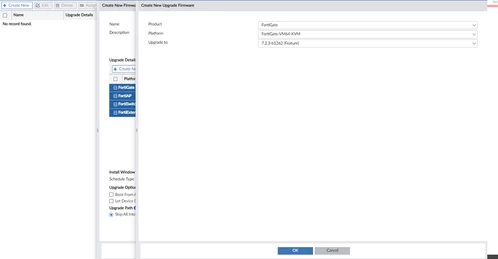
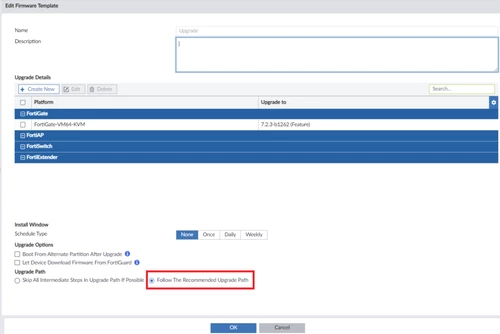
Step 2: Select Upgrade Path
⇒ Always choose:
Recommended Upgrade Path
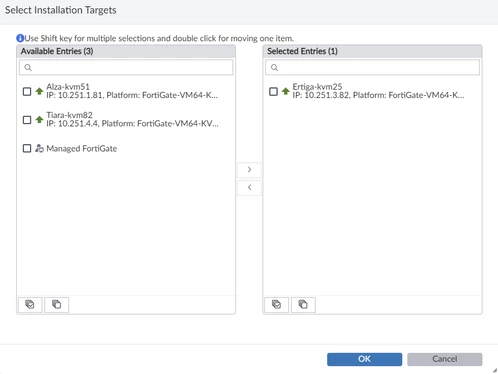
Step 3: Assign Devices
- Right-click template → Assign to Device/Group
- Move devices to Selected Entries
- Click OK
Step 4: Verify Assignment
Devices appear under template.


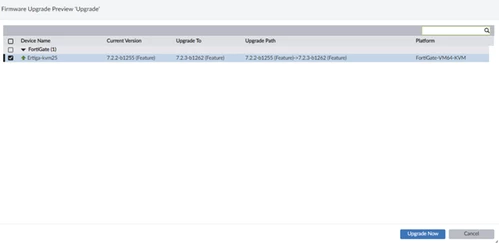
Step 5: Start Upgrade
- Right-click template → Upgrade Now
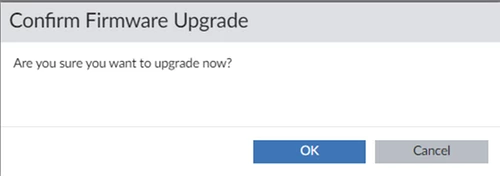
- Confirm upgrade
HA Cluster Upgrade Behavior (IMPORTANT)
- Upgrade process is SAME as standalone
- Only primary device appears in FortiManager
- Secondary device upgrades automatically
⇒ This is normal behavior
✔ Works only if HA cluster is healthy
Debug & Monitoring (CRITICAL)
FortiManager Debug
diagnose fwmanager fwm-log
⇒ Shows live upgrade logs
FortiGate Debug
Run on console:
					diagnose debug cli 8
diagnose debug enable
Task Monitoring
- Check upgrade job in Task Monitor
CRITICAL WARNING (HA Outage Issue)
During HA upgrade:
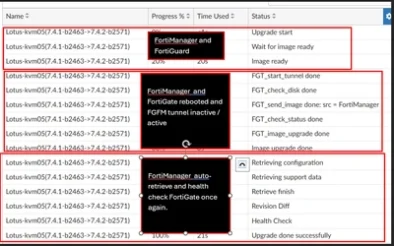
⇒ If disk check is required:
- FortiManager reboots firewall twice
- Can cause network outage
Real Problem
- Primary reboots
- Secondary reboots too quickly
- Both devices go down
⇒ Result:
- Network outage
- Version mismatch
Workaround (VERY IMPORTANT)
Disable disk check before upgrade:
					config fmupdate fwm-setting
set check-fgt-disk disable
end
Troubleshooting Commands
Use these on FortiManager:
					diagnose fwmanager fwm-log
diagnose fwmanager service-restart
Notes / Best Practices
- Always verify the license before upgrading to avoid issues
- Always use the recommended upgrade path to ensure a safe upgrade process
- Monitor the upgrade process through Task Monitor to track its progress and status.
- Take config backup using Revision History before changes.
- Avoid upgrading during peak hours to prevent performance impact
- Check HA health before upgrading to ensure system stability
FAQ
How to check FortiGate upgrade license?
Use:
diagnose fmupdate fds-dump subs
Can I upgrade multiple devices?
Yes, using Firmware Templates
Does HA upgrade automatically?
Yes, secondary upgrades automatically via primary
Why does network outage happen?
Reboot occurs at the same time as the disk check is running.
How to avoid HA upgrade issues?
Disable disk check before upgrade