FortiManager Firmware: Download & Import Like a Pro
Description
Learn how to import FortiManager Firmware Download images manually or via FortiGuard with step-by-step guide, screenshots, and best practices for setup.
Scope
This guide clearly and effectively explains how to perform FortiManager Firmware Download and import firmware images into FortiManager. It is very useful and helpful for both beginners and experienced users who are managing FortiGate upgrades.
It covers:
Firmware is automatically downloaded from FortiGuard without manual intervention.
Firmware is imported manually into FortiManager.
Steps performed through the graphical interface to navigate and complete a task
CLI is used to verify requirements before performing a task.
Solution
Method 1: Automatic Firmware Download (FortiGuard)
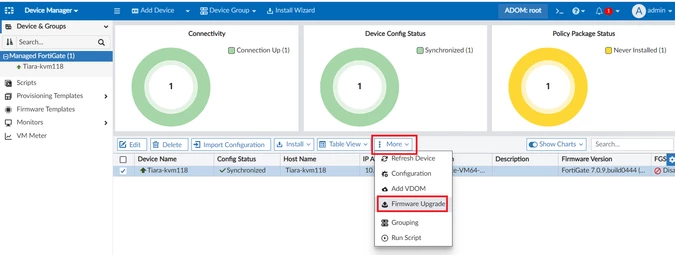
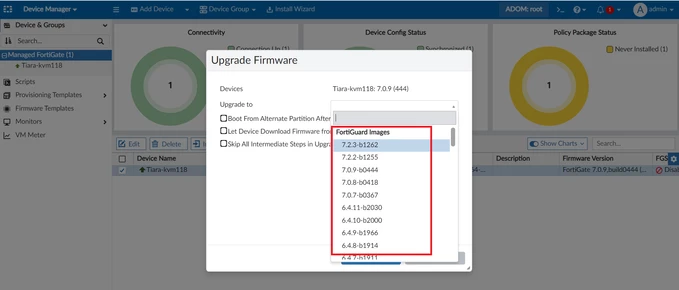
When you upgrade a device using FortiManager, the system can automatically perform FortiManager Firmware Download and download firmware, making the process simpler and more efficient.
Steps:
- Go to:
More → Firmware Upgrade - Select your FortiGate device
- Choose a firmware version from the list
- FortiManager downloads the image from FortiGuard
- Upgrade process starts automatically
Method 2: Manual Firmware Download & Import (Recommended)
If you want more control, you can manually perform FortiManager Firmware Download and import firmware, allowing a more flexible and controlled process.
Step 1: Download Firmware
- Go to Fortinet Support Portal:
👉 https://support.fortinet.com/Download/FirmwareImages.aspx - Download the required firmware image
Step 2: Import Firmware into FortiManager
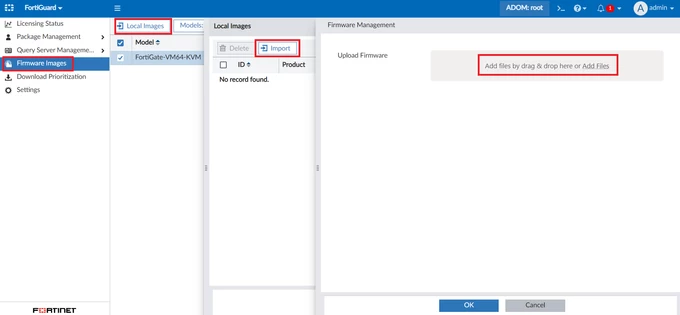
Navigate to:
FortiGuard → Firmware Images → Local Images → Import
Upload the downloaded firmware file.
Step 3: Use Imported Firmware
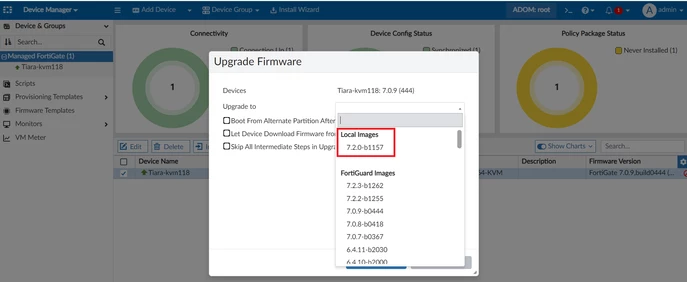
Once imported:
The firmware appears under Local Images for easy and quick access.
You can select it during upgrade for easy configuration selection.
Why Use Manual Import?
Manual import provides key advantages:
Upgrades complete faster with no download delay for better efficiency.
Useful in networks with limited or restricted internet access.
More control over firmware versions by selecting versions during upgrades.
Reliable for large deployments ensures stability in large environments.
Important Prerequisites (MUST FOLLOW)
Before upgrading, ensure:
1. Backup Configuration
Backup FortiGate config ensures safe recovery of settings before changes.
Backup FortiManager config ensures safe settings recovery.
⇒ Prevents data loss if upgrade fails
2. Verify Firmware Contract
Make sure the device has a valid firmware contract for proper updates.
Run this CLI command:
diagnose fmgupdate dbcontract <FortiGate Serial Number>
✔ Check:
- “FMWR” section
- Contract expiry date
⇒ Firmware upgrade will fail without a valid contract
Notes / Best Practices
Always verify FortiManager connection to FortiGuard for smooth updates.
Use local images for faster deployment to improve speed.
Never skip configuration backup ensures safe recovery during changes.
Confirm compatibility before upgrading for safe system updates.
Use correct firmware for your device model to avoid compatibility issues.
FAQ
Can FortiManager download firmware automatically?
Yes, it downloads from FortiGuard during the upgrade process.
Why import firmware manually?
It reduces upgrade time and avoids download delays for faster execution.
Where are imported images stored?
In:
FortiGuard → Firmware Images → Local Images
What happens if contract is invalid?
Firmware upgrade will fail or be blocked due to system restrictions.
Is backup really necessary?
Yes, it helps restore the system if something goes wrong during upgrade.