How to Read the FortiGate ARP Table (NAT Mode)
Description
Learn how to view the FortiGate ARP Table in NAT mode using simple CLI and sniffer commands for quick and efficient network troubleshooting.
Scope
This guide explains how to display the FortiGate ARP Table on a FortiGate firewall running in NAT mode. It is useful for beginners, network admins, and FortiGate engineers.
You will learn how to:
- View ARP entries
- Use ARP sniffer commands
- Work with VDOM environments
- Troubleshoot local network issues
In addition, this guide uses simple commands to view the FortiGate ARP Table and clear examples. Therefore, it is easy to follow even for new FortiGate users.
Solution
What Is the ARP Table?
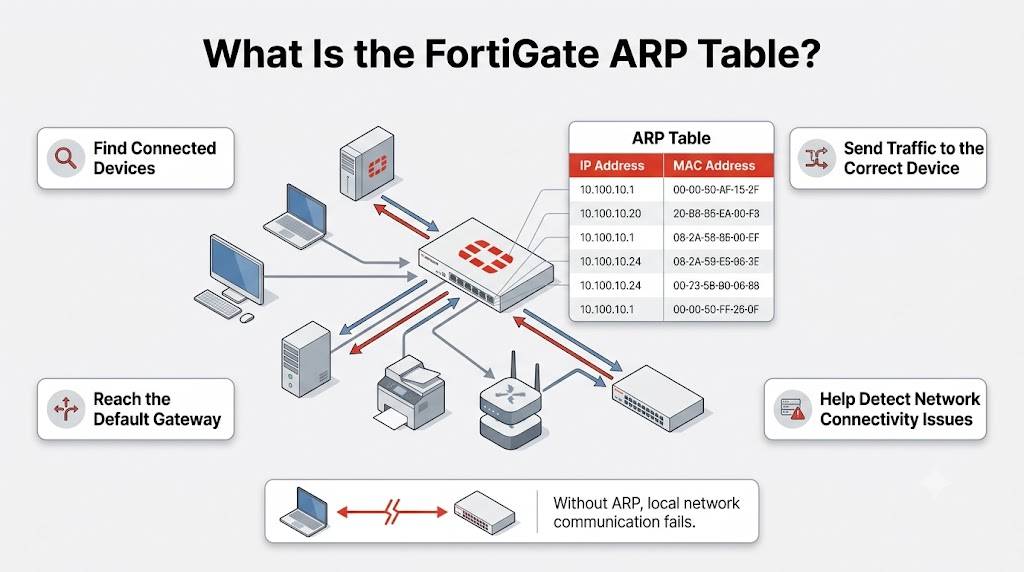
FortiGate uses ARP entries to:
- Find connected devices
- Send traffic correctly
- Reach gateways
- Detect network issues
Without ARP, local communication fails.
How to Display the ARP Table on FortiGate
When VDOMs Are NOT Enabled
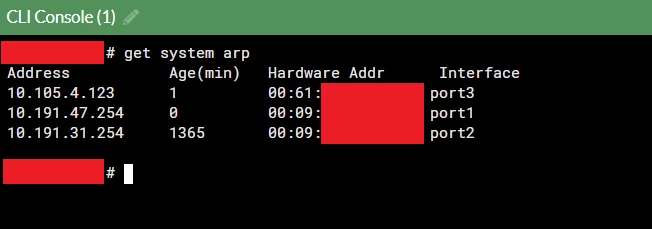
Run the following CLI command:
get system arp
This command displays all learned ARP entries on the FortiGate ARP Table, helping in local network communication.
Example Output
					Address       Age(min)    Hardware Addr        Interface
192.168.1.1    2          00:11:22:33:44:55    wan1
192.168.1.10   1          aa:bb:cc:dd:ee:ff    internal
Output Explanation
| Field | Description |
|---|---|
| Address | Device IP address |
| Age(min) | Time since last ARP update |
| Hardware Addr | Device MAC address |
| Interface | Connected FortiGate interface |
How to Display the ARP Table When VDOMs Are Enabled
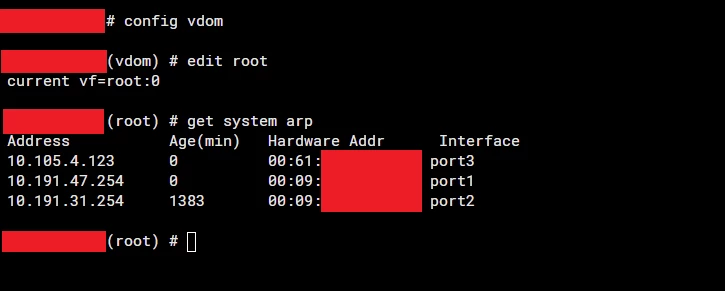
If Virtual Domains (VDOMs) are enabled, first enter the correct VDOM.
Run:
					config vdom
edit root
get system arp
Replace:
root
with your actual VDOM name if different.
How to Capture ARP Packets on FortiGate
FortiGate can also capture live ARP traffic using the sniffer command, helping monitor the FortiGate ARP Table in real time.
Run:
diagnose sniffer packet <interface_name> "arp" 6 0 l
Example:
diagnose sniffer packet wan1 "arp" 6 0 l
This command captures ARP frames in real time on the selected interface.
ARP Sniffer Command Breakdown
| Parameter | Meaning |
|---|---|
| diagnose sniffer packet | Starts packet capture |
| wan1 | Interface to monitor |
| “arp” | Filters only ARP traffic |
| 6 | Verbose output level |
| 0 | Unlimited packets |
| l | Displays Ethernet headers |
Common Reasons to Check the ARP Table
Checking the ARP table helps troubleshoot:
- Duplicate IP addresses
- Gateway communication issues
- MAC address conflicts
- Devices not reachable on LAN
- Layer 2 network problems
- VLAN connectivity issues
- NAT mode communication failures
Step-by-Step ARP Troubleshooting
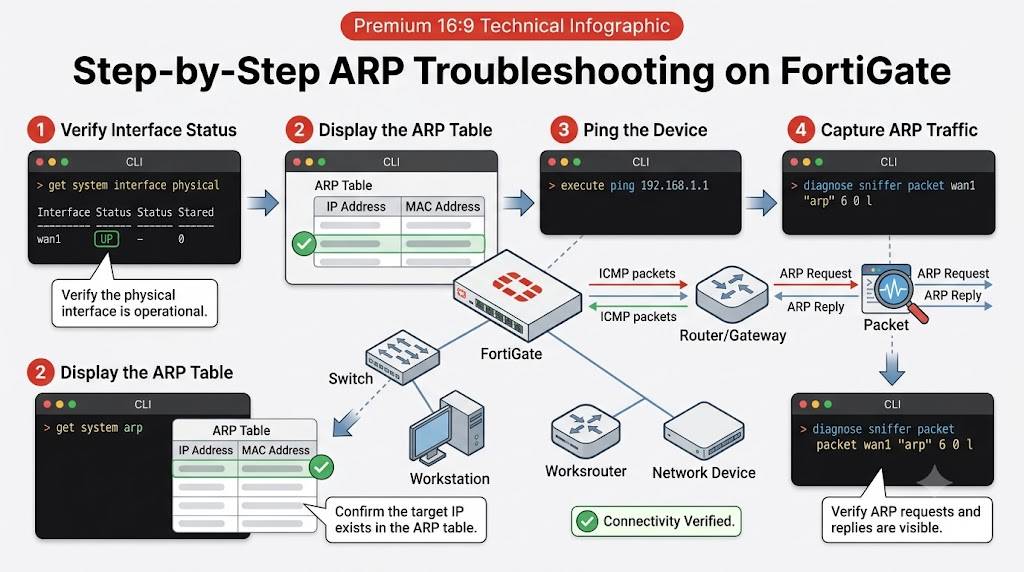
Step 1: Verify Interface Status
Run:
get system interface physical
Make sure the interface is up.
Step 2: Display the ARP Table
Run:
get system arp
Check whether the target IP appears in the table.
Step 3: Ping the Device
Run:
execute ping <ip-address>
Example:
execute ping 192.168.1.1
Step 4: Capture ARP Traffic
Run:
diagnose sniffer packet wan1 "arp" 6 0 l
Verify whether ARP requests and replies are visible.
Best Practices for ARP Troubleshooting
- Always verify physical connectivity first
- Confirm the correct VLAN and interface
- Avoid duplicate IP addresses
- Clear stale ARP entries during testing
- Use packet sniffing for deeper analysis
- Verify switch port configuration
Important Notes
NAT Mode Requirement
This guide applies to FortiGate devices configured in NAT mode.
Transparent mode behaves differently and may show different ARP behavior.
ARP Entries Can Expire
ARP entries automatically age out if devices stop communicating.
This is normal FortiGate behavior.
VDOM Environment
Always enter the correct VDOM before troubleshooting if VDOMs are enabled.
Otherwise, the ARP table may appear incomplete.
FAQ
How do I display the ARP table on FortiGate?
Run:
get system arp
How do I check the ARP table when VDOMs are enabled?
Run:
config vdom
edit root
get system arp
How do I capture ARP packets on FortiGate?
Use:
diagnose sniffer packet wan1 "arp" 6 0 l
Why is a device missing from the ARP table?
Possible causes include:
- Device offline
- VLAN mismatch
- Interface down
- No recent traffic
- Incorrect subnet configuration
What does the ARP table show?
The ARP table maps IP addresses to MAC addresses for connected devices.
Can ARP troubleshooting help fix connectivity issues?
Yes. ARP analysis helps identify Layer 2 and local network communication problems.