
Simple FortiGate Reset Without Locking Yourself Out
Description
Learn how to perform a FortiGate Reset Without Lockout using CLI commands safely and reset to factory settings without losing management access.
Solution
What Is a FortiGate Factory Reset?
A factory reset restores the device to its original default (out-of-the-box) configuration. It removes all custom settings.
However, it does not:
- Change firmware version
- Remove antivirus definitions
- Delete IPS signatures
As a result, the system returns to its default state in a FortiGate Reset Without Lockout process without affecting core software.
Scope
This guide explains how to perform a FortiGate Reset Without Lockout factory reset without losing management access. It is designed for beginners and intermediate users.
These methods work on FortiGate and FortiProxy devices for a FortiGate Reset Without Lockout. You will learn both full reset and safe reset options using CLI commands.
Method 1: Full Factory Reset (Complete Wipe)
This method completely clears the configuration. After reset, direct or physical access is usually required.
Steps
- Connect to the device using SSH
Run the command:
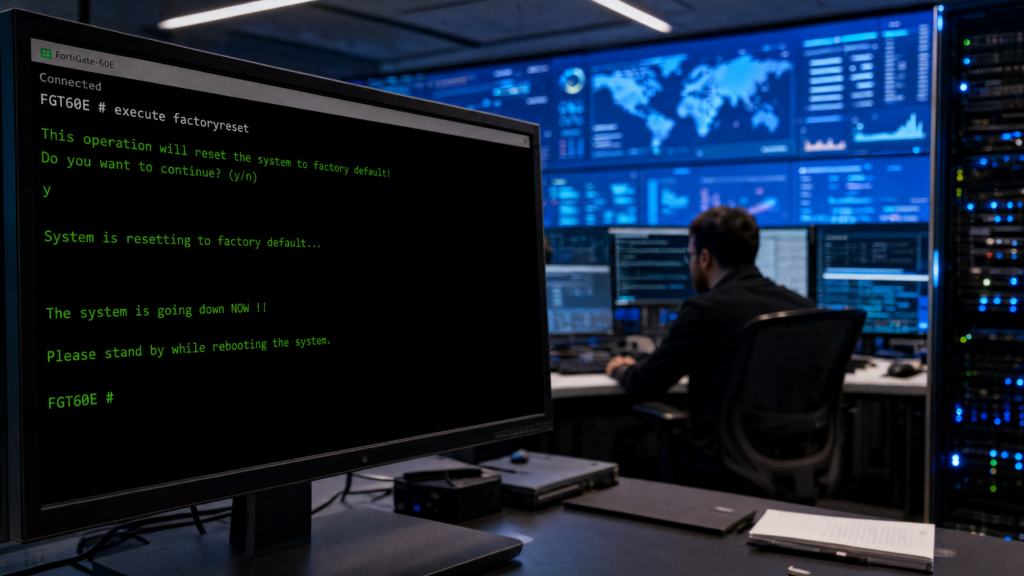
execute factoryreset
3. You will see the warning
					This operation will reset the system to factory default!
Do you want to continue? (y/n)
4. Type y and press Enter
5. Wait for the device to reboot
After reboot, the system loads a basic configuration.
Important
- All configurations will be deleted
- Device returns to out-of-the-box condition
- Remote access may stop working
- Direct console or physical access may be required
Method 2: Reset Without Losing Management Access
This method performs a FortiGate Reset Without Lockout while resetting the system and keeping network access. It is ideal for remote environments.
Steps
- Open an SSH session to the device
Run the command:
execute factoryreset2
3. You will see a warning prompt
4. Type y to confirm
5. Wait for the reboot
What This Method Keeps
- VDOM configuration
- Interface settings
- Static routes
Technical Configuration Sections Preserved
The following sections remain unchanged:
- system.global.vdom-mode
- system.global.long-vdom-name
- system.virtual-switch
- system.interface
- system.settings
- router.static
- router.static6
What Gets Removed
- Firewall policies
- VPN (IPsec) configurations
- Security rules and custom settings
Therefore, you can still access the device remotely using its IP address.
Advanced Reset Options
Keep Central Management Settings (FortiOS 7.0+)
This option resets the device while preserving central management configuration.
Run:
execute factoryreset-for-central-management
This keeps:
- system.central-management.serial-number
- system.central-management.fmg
Reset and Shutdown
Run:
execute factoryreset-shutdown
This command resets the device and then powers it off. It is useful for storage or redeployment.
Default Access After Reset
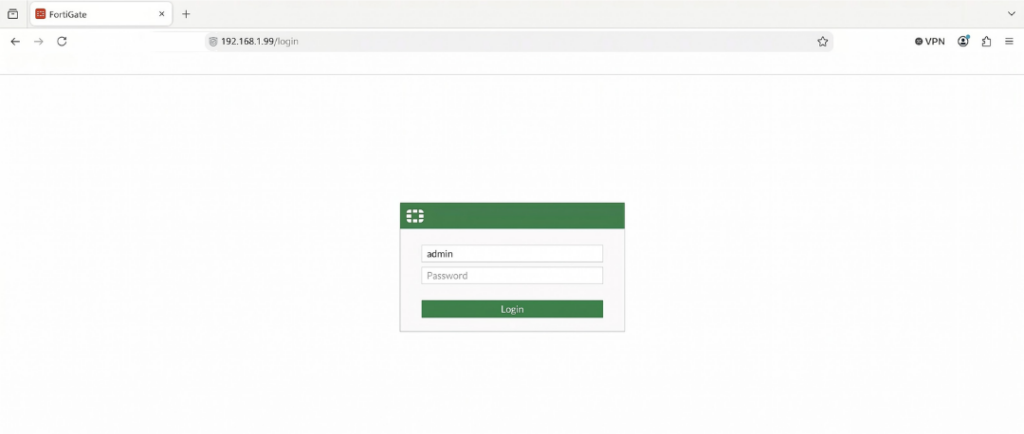
After reset, use default credentials:
- IP Address:
192.168.1.99 - Username:
admin - Password:
(no passwords)
All previous administrator accounts will be removed.
Important Notes
- Always back up your configuration before resetting
- All logs stored in memory or disk will be deleted
- Only new logs will be generated after reboot
- Direct access may be required after a full reset
Admin Password Recovery
If the admin password is lost, use a maintainer or recovery method before performing a reset.
Alternative: Hardware Button Reset
If CLI access is not available, you can reset the device using the external reset button.
This method:
- Requires physical access
- Fully resets the device
- Removes all configurations
Note / Tips
- Use factoryreset2 for remote systems
- Always verify access after reset
- Keep configuration backups in a secure place
- Avoid resetting during peak network usage
- Document IP and interface settings before reset
FAQ
How do I reset FortiGate without losing access?
Use execute factoryreset2. It keeps interface and routing settings.
What is the difference between factoryreset and factoryreset2?
Factoryreset removes everything. Factoryreset2 keeps management-related configurations.
Does factory reset remove firmware or updates?
No, firmware version and security definitions remain unchanged.
What is the default IP after reset?
The default IP address is 192.168.1.99.
Will logs be deleted after reset?
Yes, all existing logs are erased during the reset.
Can I reset FortiGate without CLI access?
Yes, you can use the hardware reset button, but physical access is required.