How to Upgrade FortiGate Using FortiManager
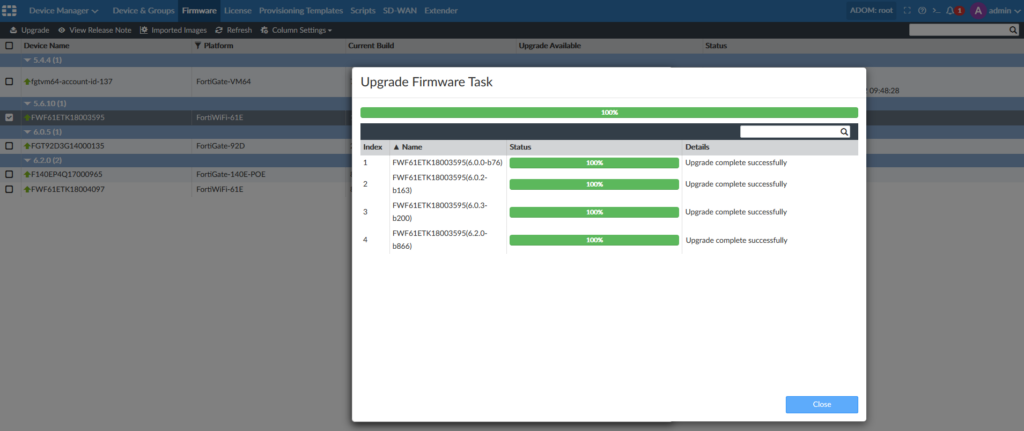
Description
Step-by-step guide to Upgrade FortiGate Using FortiManager with tasks, CLI reports, system behavior, best practices, and troubleshooting for safe upgrades.
Scope
This guide explains the FortiGate upgrade process using FortiManager in a simple and clear way for Upgrade FortiGate Using FortiManager.
It is useful for:
Beginners learning FortiManager workflows for Upgrade FortiGate Using FortiManager.
Network engineers managing firmware upgrades and FortiGate updates.
The article covers FortiGate upgrade process using FortiManager.
What happens during upgrade, including system behavior and processing steps.
Tasks on FortiManager and FortiGate during firmware upgrade process.
CLI commands to verify upgrade reports and system status after upgrade.
Solution
Overview of Upgrade Process
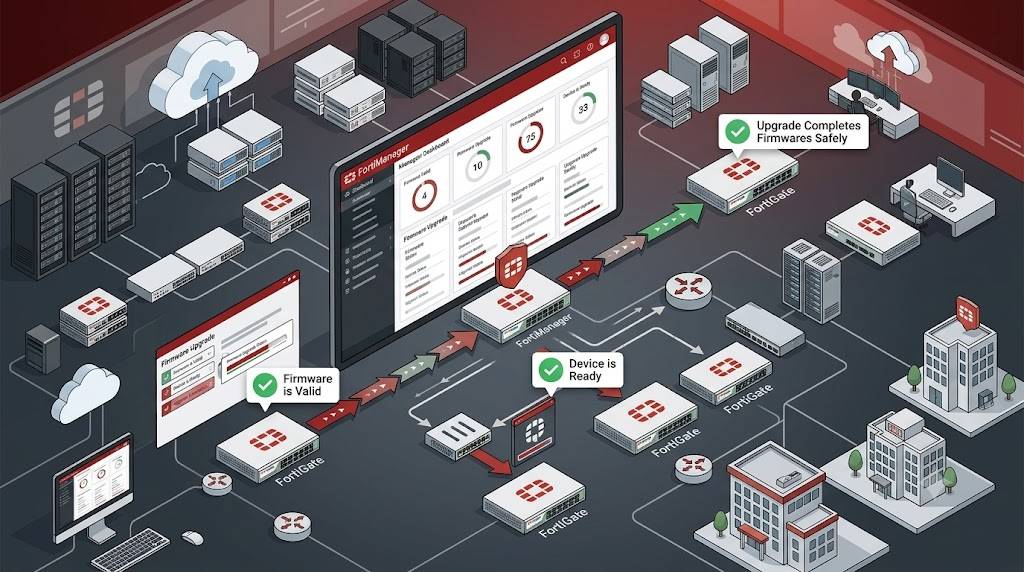
When upgrading a FortiGate using FortiManager, both systems perform multiple tasks at the same time during Upgrade FortiGate Using FortiManager.
These tasks ensure:
- Firmware is valid
- Device is ready
- Upgrade completes safely
Tasks Performed by FortiManager
During the upgrade, FortiManager performs the following steps in the FortiGate upgrade process.
- Checks and retrieves firmware image (local or FortiGuard)
- Verifies FortiGate disk status
- Pushes firmware image to FortiGate
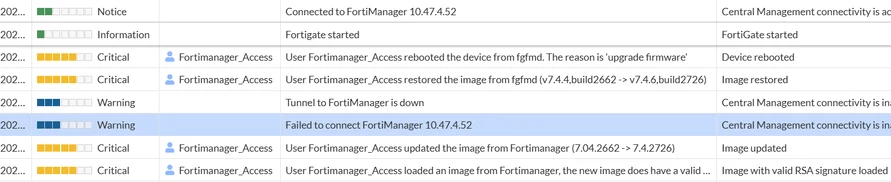
- FortiGate reboots during image transfer
- FGFM tunnel goes DOWN temporarily
- After reboot, FGFM tunnel comes back UP
- FortiManager retrieves configuration status
- Upgrade task completes
Tasks Performed by FortiGate
At the same time, FortiGate performs its own actions during the upgrade process.
- Receives firmware image from FortiManager
- Validates image (must have valid RSA signature)
- FGFM tunnel becomes inactive
- Device reboots
- FGFM tunnel becomes active again
CLI Command: Detailed Upgrade Report
You can view a full upgrade report using:
diagnose fwmanager report list-device-report <adom_name>
What This Command Shows
- Device name
- Firmware before upgrade
- Target firmware version
- Start and end time
- Health check results
- Memory and system info
- Crash logs
- Configuration changes
- Upgrade path
- Task status
It also shows:
- Sub-tasks performed
- Config differences after upgrade
- Final result status

CLI Command: Upgrade Summary Report
To quickly check firmware versions before and after upgrade:
diagnose fwmanager report device-report-summary <adom_name>
What This Command Shows
- Device name
- Task ID
- Firmware before upgrade
- Firmware after upgrade
- Start time
- End time
- Profile name
This gives a quick overview without full logs.
Notes / Tips
- Always monitor the FGFM tunnel status during upgrade
- Temporary disconnect is normal during reboot
- Ensure firmware image is valid (RSA signed)
- Use CLI reports to verify success and troubleshoot
- Upgrade tasks run simultaneously on both systems
FAQ
What is FGFM tunnel in upgrade process?
It is the communication channel between FortiManager and FortiGate.
Why does the FortiGate reboot during upgrade?
Reboot is required to apply the new firmware.
Is FGFM tunnel disconnection normal?
Yes, it goes down during reboot and comes back after.
How to check upgrade result?
Use:
diagnose fwmanager report device-report-summary
What if upgrade fails?
Check detailed logs using:
diagnose fwmanager report list-device-report