Using Firmware Manager CLI and API for Reliable Control
Description
Use Firmware Manager CLI and API in FortiManager to upgrade FortiGate, schedule tasks, manage flags, automate workflows, and troubleshoot issues safely.
Scope
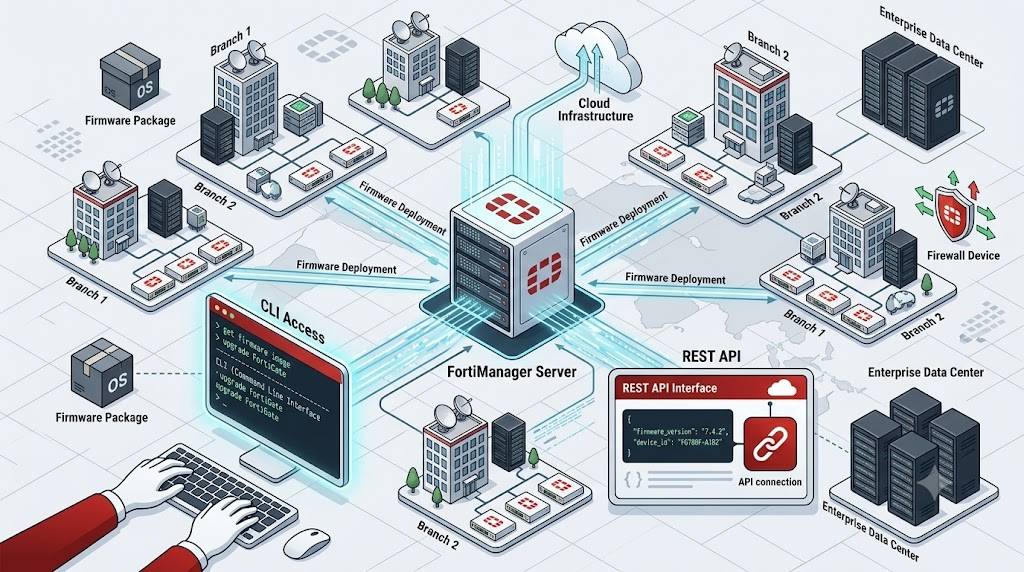
This guide explains how to use the Firmware Manager CLI and API in FortiManager to upgrade FortiGate devices efficiently, manage firmware tasks, and ensure smooth deployments.
It is designed for both beginners and experienced users. You will learn how to use Firmware Manager CLI to:
Check upgrade paths for supported firmware upgrades.
Schedule firmware upgrades for planned device updates.
Use CLI commands and API for firmware management.
Manage upgrade flags for controlled firmware updates.
Troubleshoot upgrade issues during firmware updates.
Solution
What is Firmware Manager in FortiManager?
Firmware Manager allows you to manage and upgrade FortiGate firmware using Firmware Manager CLI for efficient control, automation, and troubleshooting of upgrade processes.
- GUI (Graphical Interface)
- CLI (Command Line Interface)
- API (Automation & scripting)
Step 1: Verify Upgrade Path (CLI)
Before upgrading, always check the upgrade path.
Command:
diagnose fwmanager show-dev-upgrade-path <device> <target-version>
Example:
FMG # diagnose fwmanager show-dev-upgrade-path FGT 6.4.7
Output:
					platform FGVMK6, upgrade path from 6.0.9 to 6.4.7:
[6.0.11 → 6.2.9 → 6.4.7]
⇒ This shows the required intermediate versions.
Step 2: Schedule Firmware Upgrade via CLI
You can schedule upgrades just like the GUI.
Command:
diagnose fwmanager set-dev-schedule <device> <version> <flags> <YYYY/MM/DD_hh:mm:ss>
Example:
diagnose fwmanager set-dev-schedule FGT 6.4.7 null 2021/12/27_01:00:00
What Happens:
- FortiManager calculates upgrade path
- Prompts for confirmation
- Creates a scheduled task
Step 3: Understand CLI Flags
Flags control upgrade behavior.
Common Flags:
| Flag | Meaning |
|---|---|
| null | Default (no options) |
| bool_alt | Boot from alternate partition |
| skip_retrieve | Skip config retrieval |
| skip_multi_steps | Ignore upgrade path |
| fortiguard_img | Download firmware from FortiGuard |
⇒ You can combine flags if needed.
Step 4: View Scheduled Tasks
Old Command (Removed after v7.0.2):
diagnose fwmanager get-all-schedule
Output Includes:
- Device ID
- Firmware version
- Scheduled time
- Task ID
- Status

Step 5: New CLI Commands (v7.0+)
Show scheduled upgrades:
diagnose fwmanager profile list
Show multiple devices:
diagnose fwmanager profile list-by-device
Clear all tasks:
diagnose fwmanager clear
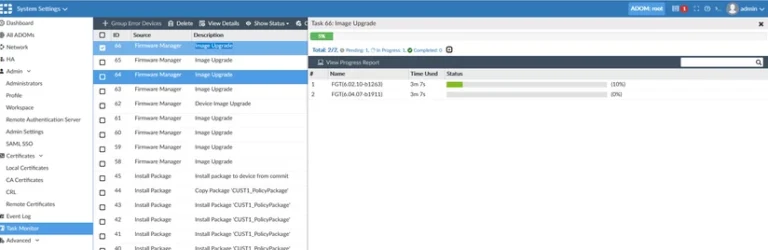
Step 6: Monitor Upgrade Task
Command:
diagnose dvm task list root running
Output:
Shows:
- Task ID
- Status (running, completed)
- Start time
Step 7: Upgrade Using API
You can automate upgrades using API.
Example API Request:
					{
  "session": "{{session}}",
  "id": 1,
  "method": "exec",
  "params": [{
    "data": {
      "adom": "root",
      "create_task": "enable",
      "device": [{ "name": "FGT" }],
      "flags": 7,
      "image": { "release": "6.4.7" }
    },
    "url": "um/image/upgrade"
  }],
  "verbose": 1
}
Step 8: API Flags Mapping
| CLI Flag | API Value |
|---|---|
| null | 0 |
| skip_retrieve | 1 |
| skip_multi_steps | 2 |
| fortiguard_img | 4 |
| fortiguard | 8 |
| preview | 16 |
| force | 16 |
⇒ Example:
fortiguard (8) + skip_retrieve (1) = 9
Step 9: Troubleshooting
If upgrade fails:
View logs:
diagnose fwmanager fwm-log
Restart service:
diagnose fwmanager service-restart
⇒ Use logs during upgrade for better debugging.
Note / Tips
- Always verify upgrade path before upgrading
- Schedule upgrades during maintenance window
- Use flags carefully to avoid issues
- Monitor tasks in real time
- Backup configuration before upgrade
- API is useful for automation and bulk upgrades
FAQ
How do I check FortiGate upgrade path in CLI?
Use:
diagnose fwmanager show-dev-upgrade-path
Can I schedule upgrades via CLI?
Yes, use:
diagnose fwmanager set-dev-schedule
What are CLI flags in firmware upgrade?
Flags control behavior like skipping steps or using FortiGuard.
Can I automate upgrades?
Yes, using the Firmware Manager API.
How to troubleshoot failed upgrade?
Use:
diagnose fwmanager fwm-log