
How to Verify FortiGuard Connectivity in FortiManager
Description
Learn how to verify and troubleshoot FortiGuard connectivity on FortiManager using GUI checks, CLI commands, packet capture, and debug tools.
Scope
This article is intended for FortiManager administrators, network engineers, and Fortinet professionals who need to verify and troubleshoot FortiGuard connectivity on FortiManager.
The article covers:
- FortiGuard communication verification
- Device license validation
- FDS connectivity checks
- Packet capture verification
- Manual update testing
- Debug and troubleshooting commands
Solution
This article describes how to verify and troubleshoot FortiGuard connectivity on FortiManager.
Anti-virus updates will be used as an example.
Terminology
- FDS = FortiGate Antivirus/IPS
- FGD = FortiGate Web-/Email filter
- AV = Anti-Virus
- IPS = Intrusion Prevention System
- WF = Web-Filtering
- AS = Anti-Spam
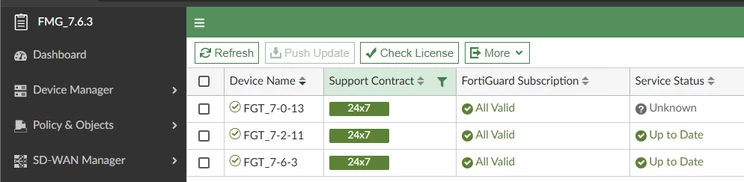
Ensure that FortiManager is able to populate the product support coverages of the managed firewall.
Go to:
FortiGuard -> Device Licenses
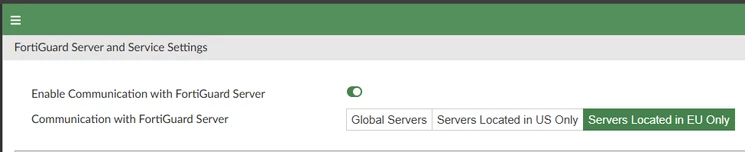
Ensure that FortiGuard communication is enabled.
Go to:
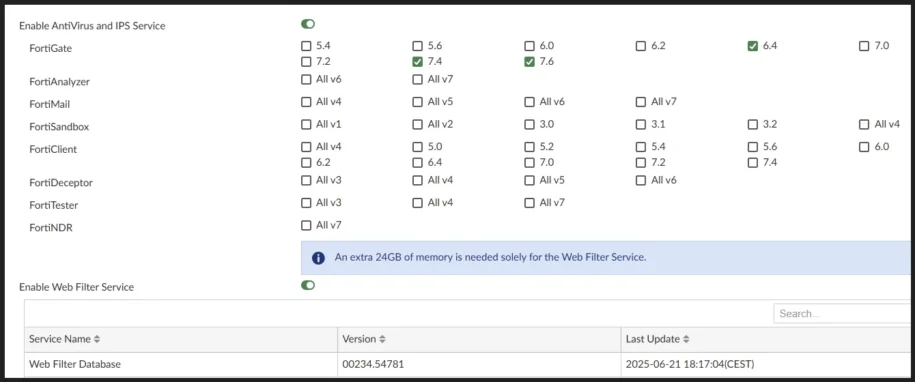
FortiGuard -> Settings
AntiVirus and IPS Service needs to be ‘ON’, and FortiGate/FortiMail/FortiSandbox/FortiClient/FortiSwitch version has to be checked.
FortiProxy has the same service as FortiGate.
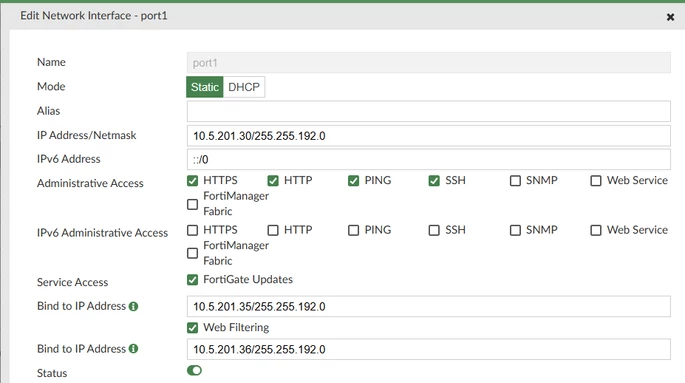
Verify that service access for FortiGate Updates (FDS) or Web Filtering (FGD) is enabled on the FortiManager management interface.
Go to:
System Settings -> Network -> Edit Port
The managed unit will not be able to get the update if it is not enabled.
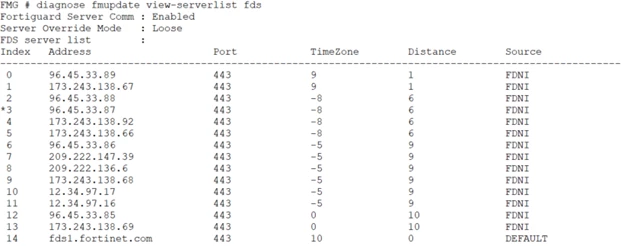
Check the FDS server list.
From the CLI, use the following command:
diagnose fmupdate view-serverlist fds
96.45.33.87 means this is the current active FDS server. FortiManager will use the next available server, 173.243.138.92 if it fails to connect to 96.45.33.87.
Verify the connectivity using ping and a packet sniffer.
					execute ping <current fds server>

execute ping fds1.fortinet.com

execute ping <the DNS server>

diagnose fmupdate dbcontract

diagnose fmupdate vm

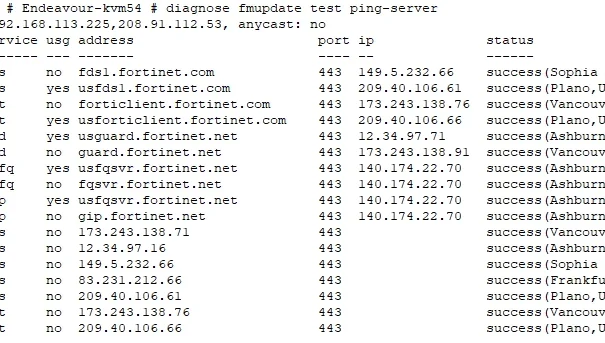
diagnose fmupdate test ping-server

get system status
Unlike the standard execute ping command, which tests basic ICMP reachability, the diagnose fmupdate test ping-server verifies service-level connectivity to the FortiGuard update infrastructure. This command attempts to establish a TCP connection to the FortiGuard update server, validating that FortiManager can reach the update service at the application layer. It tests the initial TCP communication required for FortiGuard update downloads, typically over TCP port 443.
A packet capture can be run in parallel to observe the TCP connection attempt to the FortiGuard Distribution Server (FDS):
diagnose sniffer packet any “host <current fds server> and port 443”
Alternatively, to capture all traffic to/from the FDS server regardless of port:
diagnose sniffer packet any 'host <current_FDS_server>' 4 a
Check the FDS connectivity log with the command below:
diagnose fmupdate view-linkd-log fds
					2020/10/13_20:46:14.608 info    fds_svrd[32057]: Start fds client session to '96.45.33.87                :443', task = POLL svc=1
2020/10/13_20:46:15.509 info    fds_svrd[32057]: [FMG-->FDS] Request: Protocol=3.0|Command=Poll|Firmware=FMG-VM64-KVM-FW-6.04-2122|SerialNumber=FMG-VM0000000001|Persistent=false|AcceptDelta=0^M ^M
2020/10/13_20:46:16.580 info    fds_svrd[32057]: FCP_CONN:: receiving package: num_objects=3 total_size=1112
2020/10/13_20:46:16.580 info    fds_svrd[32057]: FCP_CONN:: received object: id=00000000FCPR00000 ver=00000.00000-2010130946 size=176
2020/10/13_20:46:16.580 info    fds_svrd[32057]: [FDS-->FMG] Response: Protocol=3.0|Response=200|Firmware=FPT033-FW-6.7-0121|SerialNumber=FPT-FCS-DELL0048|Server=FDSG|Persistent=false|ResponseItem=00000000FCNI00000:200*00000000FDNI00000:200^M ^M
2020/10/13_20:46:16.580 info    fds_svrd[32057]: FCP_CONN:: received object: id=00000000FCNI00000 ver=00000.00000-2001201850 size=88
2020/10/13_20:46:16.580 info    fds_svrd[32057]: FCP_CONN:: received object: id=00000000FDNI00000 ver=00000.00000-2008010807 size=464
2020/10/13_20:46:16.581 info    fds_svrd[32057]: Check update with fds 96.45.33.87                 SUCCESS
Check the antivirus version and release date/time.
Go to:
FortiGuard -> Packages
Compare with FortiGuard.
Perform a manual update with the command below:
diagnose fmupdate updatenow fds
Check the result of fmupdate updatenow with the below command, which will show the status for the latest update trial and the data of the latest update:
diagnose fmupdate update-status fgd
					Service=fgd|Response=202|UpdatedDate=2024-04-19|UpdatedTime=03:56:28|Status=-1|UpullErr=Connect error|UpullServer=208.184.237.64|TotalObjNum=7|CurrentObj=7|DownloadSize=5737|TotalPackageSize=5737
Service=fgfq|Response=202|Status=0|UpullErr=|UpullServer=null|TotalObjNum=0|CurrentObj=0|DownloadSize=0|TotalPackageSize=0
Service=geoip|Response=202|UpdatedDate=2024-04-10|UpdatedTime=21:23:32|Status=-1|UpullErr=Connect error|UpullServer=140.174.22.70|TotalObjNum=3|CurrentObj=3|DownloadSize=1301|TotalPackageSize=1301
diagnose fmupdate update-status fds
Service=FGT|Response=202|UpdatedDate=2024-04-17|UpdatedTime=16:54:01|LastSuccessDate=2024-04-17|LastSuccessTime=16:5
A manual update with the command below:
Run the debug below if the FDS update still fails:
					diagnose debug application fdssvrd 255
diagnose debug enable
Run these debugs for 2-3 minutes and then disable:
					diagnose debug disable
diagnose debug reset
Note
This step can be skipped if FortiGate is configured to get updates directly from FortiGuard.
FAQ
What is FDS in FortiManager?
FDS stands for FortiGate Antivirus/IPS.
Where can FortiGuard communication settings be verified?
Go to:
FortiGuard -> Settings
What command checks the FDS server list?
Use:
diagnose fmupdate view-serverlist fds
What does diagnose fmupdate test ping-server do?
It verifies service-level connectivity to the FortiGuard update infrastructure by attempting a TCP connection to the FortiGuard update server.
Where can antivirus package versions be checked?
Go to:
FortiGuard -> Packages
What debug commands can be used if FDS updates fail?
					diagnose debug application fdssvrd 255
diagnose debug enable