FortiGate Factory Reset Using External Button (Full Guide 2026)
Description
Learn how to use the FortiGate Factory Reset Button to reset a firewall, including LED timing, firmware behavior, troubleshooting, and methods.
Scope
This article applies to:
- FortiGate / FortiWiFi small and mid-range models
- Devices with RESET or BLE/RESET button
- FortiOS v7.4.1 and above (and earlier versions where applicable)
It covers:
- FortiGate Factory Reset Button behavior and timing:
- LED status stages
- Option A (Console-assisted reset method)
- Option B (Direct reset behavior)
- CLI verification
- Troubleshooting
Solution
What is the Reset Button?
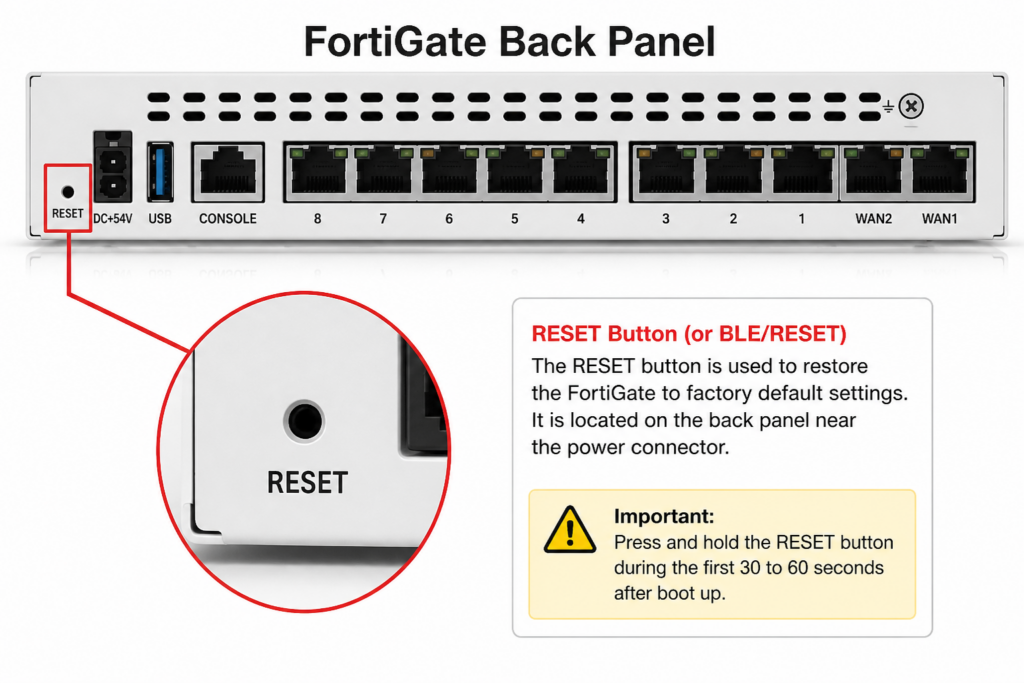
- Most FortiGate devices include a physical FortiGate Factory Reset Button labeled:
- RESET or
- BLE/RESET
⇒ Location:
- Back panel (near power port), or
- Front panel (some models like 80
Important Conditions Before Reset
- Device must be rebooted (power cycle required)
- Reset button works only in first 30–60 seconds after boot
- After this time, the button becomes inactive
OPTION A: Console Assisted Reset Method
Step 1: Console Connection Setup
Connect FortiGate to PC using console cable.
On Windows:
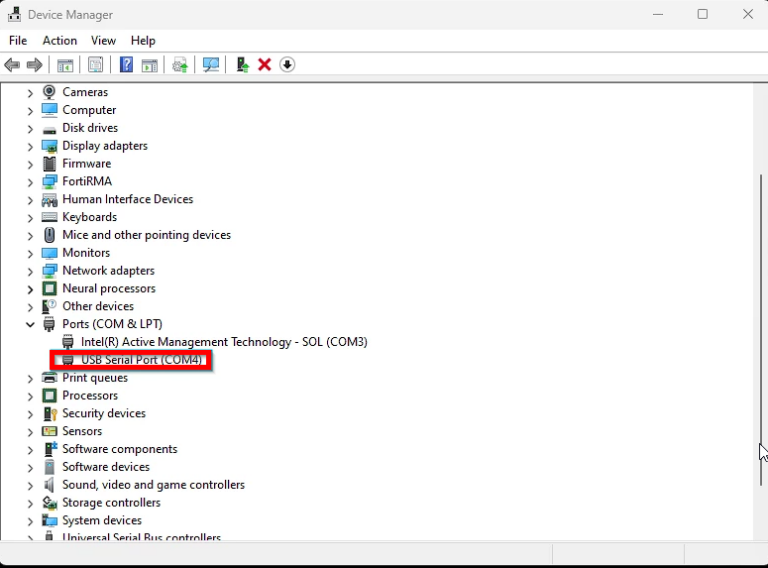
- Open Device Manager
- Go to Ports (COM & LPT)
- Note COM port (example: COM3)
Step 2: Configure PuTTY
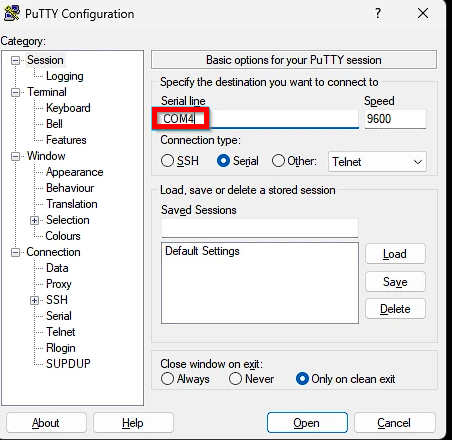
Set PuTTY:
- Connection type: Serial
- Serial line: COM port (e.g., COM3)
- Speed: 9600
⚠️ COM port must match Device Manager exactly
Step 3: Power Cycle Device
- Unplug power cable
- Wait 10 seconds
- Plug it back in
⚠️ CLI reboot command is NOT enough — must fully power cycle
Step 4: Wait for Boot Stage
Wait until:
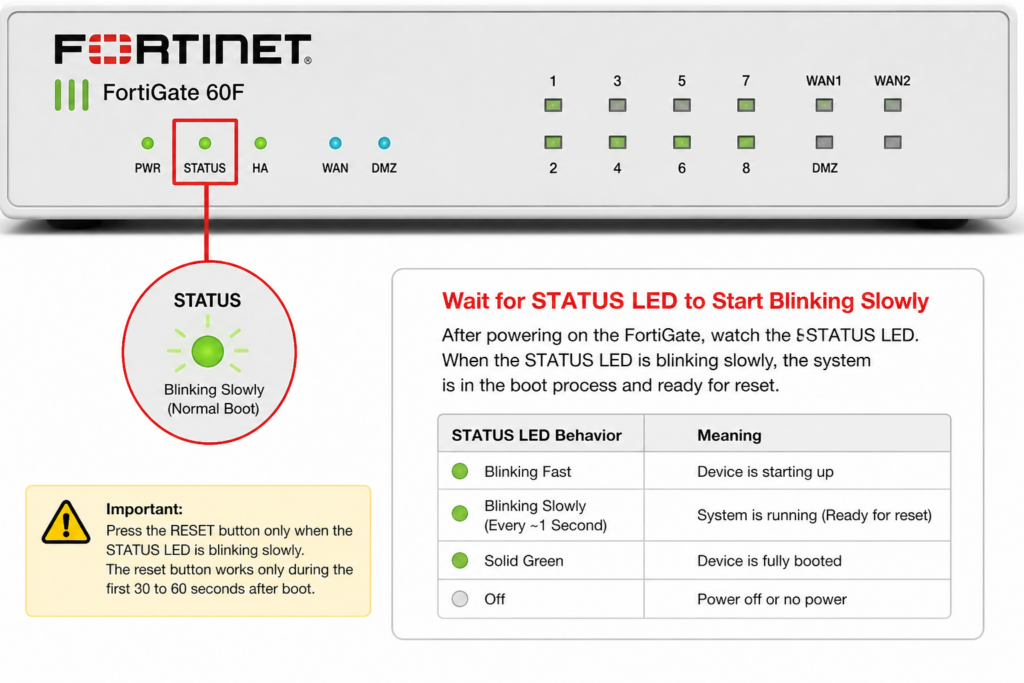
- STATUS LED starts slow blinking
- Console shows login prompt
⇒ This is the reset activation window
Step 5: Press Reset Button
During slow blinking:
Press the FortiGate Factory Reset Button
- STATUS LED will blink faster
- Device will reboot automatically
Step 6: Result
- Configuration is erased
- Device resets to factory default
OPTION B: Direct Hardware Reset Behavior
(Some models support this simplified method)
Step 1: Power Cycle Device
- Unplug power
- Wait 10 seconds
- Plug back in
Step 2: Press Reset Button
- Press RESET during early boot stage
- Some models do NOT require exact LED timing
Step 3: Automatic Factory Reset
- Device resets automatically
- Same result as CLI command:
execute factoryreset
Firmware Behavior Differences
For FortiOS v7.4.1 and above
- LED behavior is slightly different:
- STATUS LED becomes solid first
- Then slow blinking window appears (5–10 seconds)
- Press RESET during slow blink stage only
Older Firmware Versions
- Reset window is around 30–60 seconds after boot
- Timing may vary by model
Method 2: CLI Verification (Optional)
To check reset button type:
diagnose hardware test button
Possible Outputs:
⇒ Reset Button Confirmed
==> Reset Button
⇒ NMI Button (Not Reset)
==> NMI Button
Important Notes
- Reset only works during early boot stage
- Console connection is highly recommended
- If STATUS LED does not blink:
- Device may have boot issue or corruption
Safety Warnings
- Do NOT press button after system is fully booted
- Avoid repeated power cycling quickly (may cause issues)
- Some models may confuse RESET with NMI button
- Use CLI test command to confirm functionality
Disable Reset Button (Not Recommended)
					config system global
set admin-reset-button disable
end
⚠️ Not recommended because:
- Removes emergency recovery option
- May block recovery during boot issues
After Reset
Default login:
- Username:
admin - Password: (blank)
System will force you to set a new password after login.
Troubleshooting Tips
- If device does not reset:
- Try holding button again for 30–60 seconds
- If STATUS LED does not blink:
- Possible boot corruption
- Use console cable to monitor reset process
Hardware Requirements
You may need:
- RJ45-to-DB9 console cable OR
- USB-to-RJ45 console cable
- Terminal software (PuTTY, Tera Term)
Advanced Notes
- Some devices require holding reset during “System is starting…” message
- On rare cases, reset button is last recovery option if:
- Boot interrupt fails
- Password is lost
- After reset, always update firmware if needed
FAQ
Does reset delete everything?
Yes, it removes full configuration.
Can I use reset button anytime?
No, only during early boot stage.
What if LED does not blink?
Device may be stuck in boot issue or hardware failure.
Is CLI reset same as button reset?
Yes, both restore factory defaults.
Can reset button be disabled?
Yes, but it is not recommended.