How to Find FortiAnalyzer Images on Support Portal
Description
Learn how to locate FortiAnalyzer Images and FortiManager firmware on the Fortinet support site for safe upgrade, download, and reinstallation easily.
Scope
This article is intended for FortiAnalyzer and FortiManager administrators who need to locate FortiAnalyzer Images firmware image files for upgrade or reinstallation purposes.
The article covers FortiAnalyzer Images:
Identifying the target firmware version for FortiAnalyzer Images.
Verifying platform type for FortiAnalyzer Images.
Accessing the Fortinet support portal for FortiAnalyzer Images.
Navigating firmware download sections for FortiAnalyzer Images.
Downloading the correct firmware image for FortiAnalyzer Images.
Understanding firmware file types for FortiAnalyzer Images.
Solution
This article explains how to find and download the required firmware files for a FortiAnalyzer or FortiManager device or virtual machine from the Fortinet support portal.
Pre-requisites
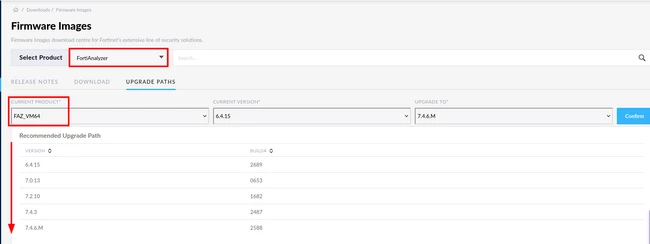
This section explains how to identify the correct target firmware version and determine the proper upgrade path required for a FortiAnalyzer system.
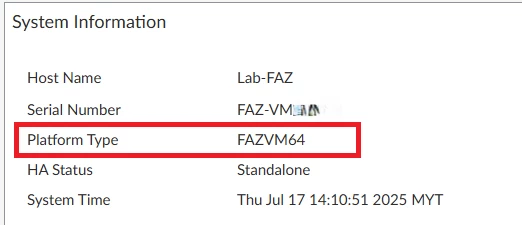
Identify the ‘Platform type’ using either from GUI or the CLI.
From the GUI, go under:
System Settings -> Dashboard -> System Information widget
From CLI:
FAZ # get system status

Steps
In this example, a FortiAnalyzer VM with target v7.4.3 will be used as a reference.
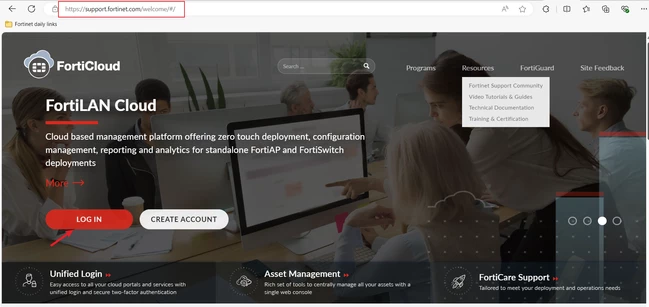
Log in with an account already active on the support site.
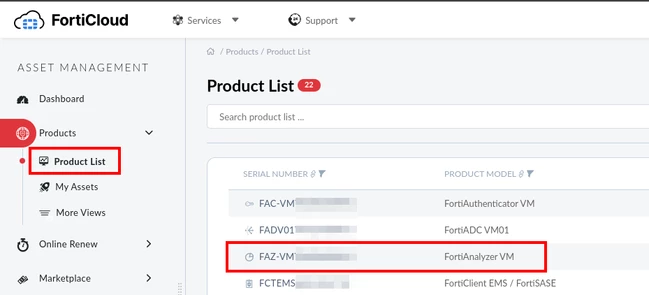
Identify the section of the product list that contains FortiAnalyzer items for FortiAnalyzer Images under:
Asset management -> Products -> Product List
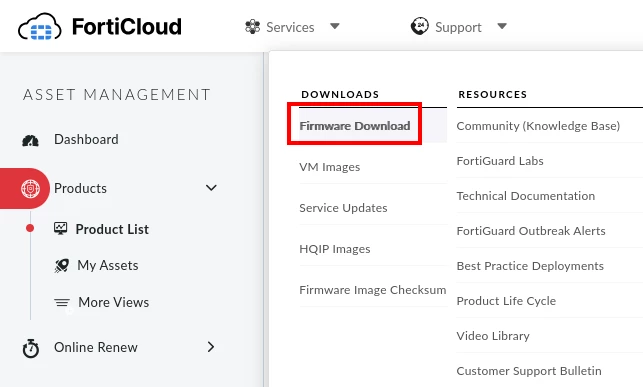
After verifying the asset, continue selecting the software download in the Support menu under:
Support -> Firmware Download
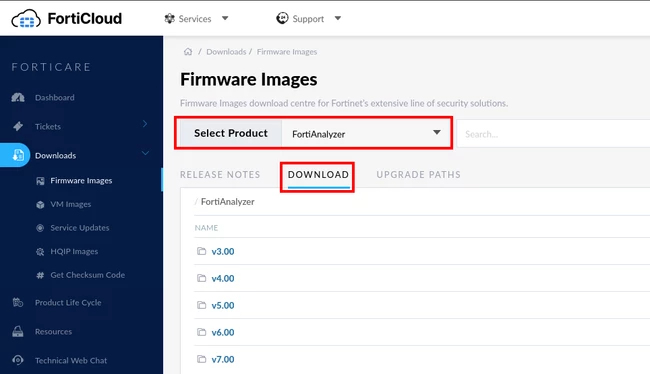
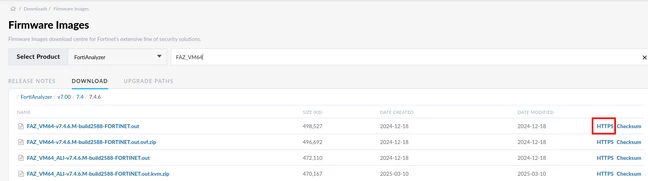
Select the product (FortiAnalyzer) and the ‘Download’ option.
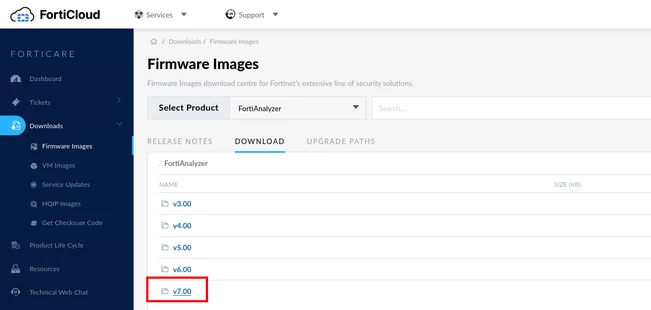
Select the folder of the base version (in this example, v7.00).
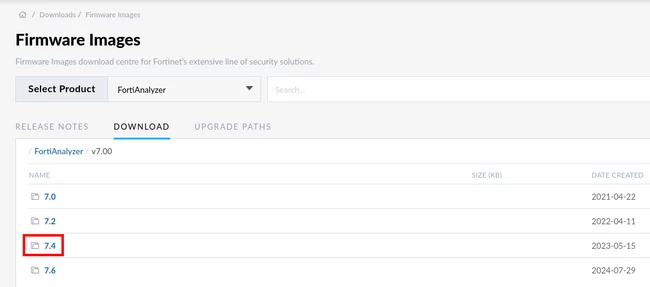
Continue selecting folders until the necessary version is reached.
When it is possible to reach the path where all files are listed, it will be necessary to identify the one that matches the product: in this case, for a VM. Use the search bar to find the image.

After finding the file, download it by selecting the HTTPS option.
Note / Tips
Note
The folder path changes to nested versions.
Note
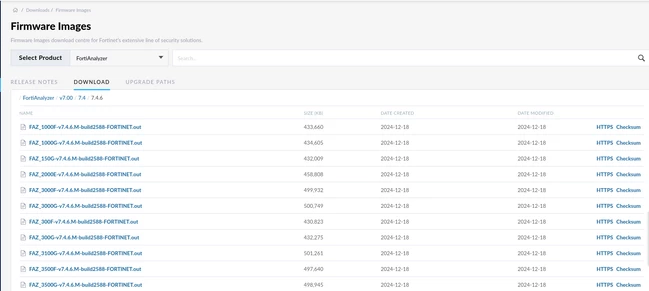
In this section, the two files are similar. Only upgrade using the *.out file version. The file *.out.ovf.zip is normally used to mount the entire image in the VM Hypervisor. If the image for a physical device is needed, choose a specific file according to the FortiAnalyzer series.
Note
Note: If the firmware still cannot be found, ensure the support contract is active, as access to FortiAnalyzer Images firmware downloads may be restricted based on support entitlement.
FAQ
Where can FortiAnalyzer firmware images be downloaded?
Firmware images can be downloaded from the Fortinet support site under:
Support -> Firmware Download
How can the FortiAnalyzer platform type be verified?
The platform type can be verified from:
System Settings -> Dashboard -> System Information widget
or by using the CLI command:
get system status
Which firmware file should be used for upgrades?
Only use the *.out file version for upgrades.
What is the *.out.ovf.zip file used for?
The *.out.ovf.zip file is normally used to mount the entire image in the VM Hypervisor.
Why might firmware downloads not be visible?
Firmware downloads may be restricted if the support contract is not active.